Add-AppxPackage : Deployment failed with HRESULT: 0x80073CFF, To install this application you need either a Windows developer license or a sideloading-enabled system Deployment of package 02897621-4EBE-4E92-9B00-263BAA300DAC_1.0.0.2_x64__32kjnh8rzfyae [Package Full
Name] failed because no valid license or sideloading policy could be applied. A developer license (http://go.microsoft.com/fwlink/?LinkId=233074) or enterprise sideloading configuration
(http://go.microsoft.com/fwlink/?LinkId=231020) may be required.
NOTE: For additional information, look for [ActivityId]
692ada4a-1bf0-0003-86dc-2a69f01bcd01 in the Event Log or use the command line Get-AppxLog -ActivityID 692ada4a-1bf0-0003-86dc-2a69f01bcd01
At line:1 char:236
+ ... $PackageFile; Add-AppxPackage $PackageFile; if(!$?) {exit 8}
+ ~~~~~~~~~~~~~~~~~~~~~~~~~~~~
+ CategoryInfo : NotSpecified: (C:\Users\in..._x64_Debug.appx
:String) [Add-AppxPackage], Exception
+ FullyQualifiedErrorId : DeploymentError,Microsoft. Windows.Appx.PackageManager.Commands. AddAppxPackageCommand
ERROR: FAILED TO INSTALL DEVELOPER PACKAGE!
Thursday, April 19, 2012
Windows RT Deployment Error
I created a Windows RT (Windows 8) Metro app, packaged it and tested in dev environment without any problem. However I got below error when installing the package in another machine (a Samsung tablet):


Monday, April 16, 2012
Windows 8 Metro PopupMenu Issue
How to create a popup in Windows 8 Metro apps? MessageDialog and PopupMenu seem to be the only two options if you go with XAML/C# approach (at least for current Customer Preview edition). MessageDialog is just the Metro implementation of WinForm MessageBox. PopupMenu represents a context menu for quick commands/actions.
Today I created a Metro application and used PopupMenu to populate a list of hints for user's input. But it's just not showing anything. I digged into the issue and found a big limitation of PopupMenu: the maximum number of popup items (UIComment or UICommandSeparator) is only 6! For example following code would throw a "The operation attempted to access data outside the valid range" exception:
2012-8-28 update: the same issue still exists in the latest Windows 8 RTM version. Let's just say this is by design and is an undocumented limitation.
Today I created a Metro application and used PopupMenu to populate a list of hints for user's input. But it's just not showing anything. I digged into the issue and found a big limitation of PopupMenu: the maximum number of popup items (UIComment or UICommandSeparator) is only 6! For example following code would throw a "The operation attempted to access data outside the valid range" exception:
            var popupMenu = new PopupMenu();
            popupMenu.Commands.Add(new UICommand("Hints", null, string.Empty));
            popupMenu.Commands.Add(new UICommandSeparator());
            popupMenu.Commands.Add(new UICommand("Hint 1", null, "Hint 1"));
            popupMenu.Commands.Add(new UICommand("Hint 2", null, "Hint 2"));
            popupMenu.Commands.Add(new UICommand("Hint 3", null, "Hint 3"));
            popupMenu.Commands.Add(new UICommand("Hint 4", null, "Hint 4"));
            popupMenu.Commands.Add(new UICommand("Hint 5", null, "Hint 5")); // <== Throw exception here
I am not sure if it's bug or limitation. There may be some reason behind that but I couldn't find any information about this limit in any MSDN documentation. Another limitation of PopupMenu is that you can't customize the look and feel of it. You may end up implementing your own popup control since the out-of-box popup function is so limited.
2012-8-28 update: the same issue still exists in the latest Windows 8 RTM version. Let's just say this is by design and is an undocumented limitation.
Thursday, April 05, 2012
ThrowIfMaxHttpCollectionKeysExceeded Error When Populating WebPart
A custom WebPart won't show in the available WebPart list when it's deployed to WebPart Gallery by a Feature. In order to use such WebPart, we need to manually populate it inside SharePoint WebPart Gallery. What you do is go to site collection's WebPart gallery, click "New" button on the toolbar, select the WebPart and click "Populate Gallery" button:

It used to be working fine but all in a sudden I got an error when populating a WebPart:

This runtime error doesn't provide any hints. There're two options to see the error detail.
1. Go to SharePoint ULS logs in SharePoint_12_Or_14_Hive\LOGS and do the search.
2. Set <customErrors mode="Off" /> in SharePoint_12_Or_14_Hive\TEMPLATE\LAYOUTS\Web.config (not the WebApplication itself).
The error found in the ULS log is:
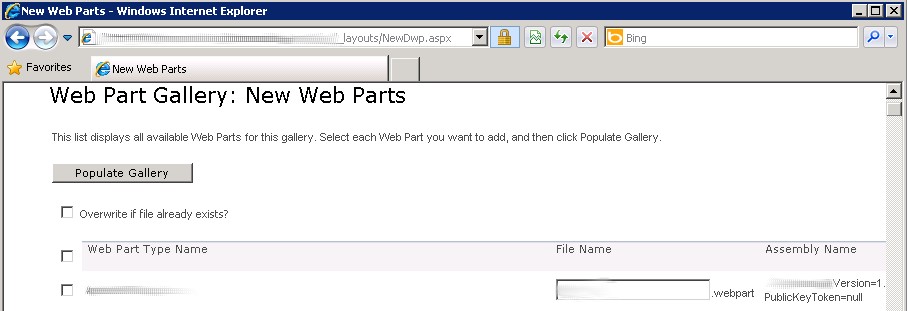
It used to be working fine but all in a sudden I got an error when populating a WebPart:

This runtime error doesn't provide any hints. There're two options to see the error detail.
1. Go to SharePoint ULS logs in SharePoint_12_Or_14_Hive\LOGS and do the search.
2. Set <customErrors mode="Off" /> in SharePoint_12_Or_14_Hive\TEMPLATE\LAYOUTS\Web.config (not the WebApplication itself).
The error found in the ULS log is:
w3wp.exe (0x21BC) 0x1EB0 SharePoint Foundation Runtime tkau Unexpected System.InvalidOperationException: Operation is not valid due to the current state of the object. at System.Web.HttpValueCollection.ThrowIfMaxHttpCollectionKeysExceeded() at System.Web.HttpValueCollection.FillFromEncodedBytes(Byte[] bytes, Encoding encoding) at System.Web.HttpRequest.FillInFormCollection() d5fef840-8ad4-46a3-ab11-0b37346e7a9f
It turns out the submit form has too many post values. Adding following appSetting to the WebApplication's web.config (C:\inetpub\wwwroot\wss\VirtualDirectories\{WebApplication}\Web.config) resolves the problem:<appSettings> <add key="aspnet:MaxHttpCollectionKeys" value="2000" /> </appSettings>As the key name suggested it's an ASP.NET related setting. Why the error happens in SharePoint suddenly? We have installed some Microsoft and SharePoint security patches recently. The default maximum 500 post values policy was introduced by those patches, specifically from Critical MS11-100 patches.
Wednesday, March 21, 2012
Task-based Asynchronous Programming in .NET 4.5
.NET 4.5 introduces the new "async" and "await" keywords to simplify the asynchronous programming. They are task-based asynchronous model, and are extensively used in the new Metro applications for better responsive UI experience.
Following code example illustrate the simple usage of "async" and "await" (run in Visual Studio 11 Beta):

Basically you need to add "async" keyword to the function definition telling compiler they could be asynchronous call(s) inside that method; "async" methods can return Task (no actual return value), Task<T> (return value of T) or void (only used in event handler without any return).
Inside a method marked as "async", you are able to use "await" keyword for a call that promises return or return value. Once "await" keyword is used, compiler will do some magic stuff for you and make that asynchronous invocation happen. Many IO and network related methods in .NET 4.5 have been refactored to support this task-based asynchronous model. Those asynchronous methods, with naming convention of xxxxAsync where xxxx is the method name, are out-of-box and can be used directly with "await" keyword.
This async programming model is much easier to work with comparing to the old .NET asynchronous programming model. In old days, developers need to spend a lot of effort to handle those callback functions such as Beginxxxx/Endxxxx methods and IAsyncResult parameter. That's painful and sometimes it's impossible to do nested async calls and error handling. With the new task-based async model, all those hustles are gone.
You can easily wrap a method as async method using TPL introduced in .NET 4.0. Code snippet below shows one way to achieve this:
using System;
using System.Collections.Generic;
using System.Linq;
using System.Text;
using System.Threading.Tasks;
using System.Net;
using System.Net.Http;
using System.IO;
using System.Diagnostics;

namespace ConsoleApplication1
{
    class Program
    {
        static void Main(string[] args)
        {
            StringBuilder syncContent = new StringBuilder(), asyncContent = new StringBuilder();
            Stopwatch watch = new Stopwatch();
            string testUrl = "http://www.google.com";
            GetWebContent(testUrl); // Warming up network connection

            Console.WriteLine("Sync web request calls start...");
            watch.Start();
            for (int i = 0; i < 100; i++)
            {
                syncContent.Append(GetWebContent(testUrl));
            }
            watch.Stop();
            Console.WriteLine("Sync web calls completed within {0} ms", watch.ElapsedMilliseconds);
            Console.WriteLine("Sync web content lengh: {0}", syncContent.ToString().Length);

            List<Task<string>> tasks = new List<Task<string>>();
            Console.WriteLine("\nSync web request calls start...");
            watch.Restart();
            for (int i = 0; i < 100; i++)
            {
                tasks.Add(GetWebContentAsync(testUrl));
            }
            watch.Stop();

            Console.WriteLine("Async web calls returned within {0} ms", watch.ElapsedMilliseconds);
            watch.Restart();
            Task.WaitAll(tasks.ToArray());
            watch.Stop();
            tasks.ForEach(v => asyncContent.Append(v.Result));
            Console.WriteLine("ASync web calls completed within {0} ms", watch.ElapsedMilliseconds);
            Console.WriteLine("Async web content lengh: {0}", asyncContent.Length);

            Console.Read();
        }

        static async Task<string> GetWebContentAsync(string url)
        {
            var webClient = new WebClient();
            var content = await webClient.DownloadStringTaskAsync(url);
            return content;
        }

        static string GetWebContent(string url)
        {
            var webClient = new WebClient();
            var content = webClient.DownloadString(url);
            return content;
        }
    }
}
The synchronous method is included in the demo cod for comparison purpose. The console app result:

Basically you need to add "async" keyword to the function definition telling compiler they could be asynchronous call(s) inside that method; "async" methods can return Task (no actual return value), Task<T> (return value of T) or void (only used in event handler without any return).
Inside a method marked as "async", you are able to use "await" keyword for a call that promises return or return value. Once "await" keyword is used, compiler will do some magic stuff for you and make that asynchronous invocation happen. Many IO and network related methods in .NET 4.5 have been refactored to support this task-based asynchronous model. Those asynchronous methods, with naming convention of xxxxAsync where xxxx is the method name, are out-of-box and can be used directly with "await" keyword.
This async programming model is much easier to work with comparing to the old .NET asynchronous programming model. In old days, developers need to spend a lot of effort to handle those callback functions such as Beginxxxx/Endxxxx methods and IAsyncResult parameter. That's painful and sometimes it's impossible to do nested async calls and error handling. With the new task-based async model, all those hustles are gone.
You can easily wrap a method as async method using TPL introduced in .NET 4.0. Code snippet below shows one way to achieve this:
        static async Task<double> MyComplicatedHeavyCalculationAsync(double x, double y)
        {
            double value = await Task<double>.Run(() => MyComplicatedHeavyCalculation(x, y));
            return value;
        }

        static double MyComplicatedHeavyCalculation(double x, double y)
        {
            // Do your complicated work ...
            return x + y;
        }
All sound good. But how about the thread context such as updating the UI content? In WPF, Silverlight and Metro apps you are most likely safe to do so since compiler are smart enough to inject the delegate code that could marshall the update back to the UI thread. For ASP.NET things are a bit more tricky. You have thread pool and httpcontext for each request is dynamically generated. Good news is that the new ASP.NET 4.5 will support task-based asynchronous model in certain ways, refer next version ASP.NET white paper for detail.
Monday, March 19, 2012
Setup Windows 8 Dev Virtual Machine
Windows 8 Customer Preview Edition has been released for about two weeks. Finally I got a chance to install a Windows 8 dev virtual machine using free VMWare Player in a Samsung 900X laptop (BTW Samsung touchpad really sucks). The setup is quick and straightforward:
1. Download required software (all free):
Windows 8 CP ISO (64-bit English version) http://windows.microsoft.com/en-us/windows-8/iso
Windows 8 CP Product Key: DNJXJ-7XBW8-2378T-X22TX-BKG7J
Visual Studio 2011 Ultimate Beta ISO http://www.microsoft.com/visualstudio/11/en-us/downloads#ultimate
VMWare Player http://downloads.vmware.com/d/info/desktop_end_user_computing/vmware_player/4_0
I also tried the Oracle Virtual Box. Everything is okay (latest Virtual Box even has the Windows 8 OS in the option list), except the screen resolution setting is not desired. VMWare Player 4.0.2 recognized the video card properly and I simply turned the screen size to 1366x768 without any tweaking.
2. Install VMWare player and then reboot the laptop as prompted.
3. Open VMWare player, from File menu click Create a New Virtual Machine…In New Virtual Machine Wizard select I will install the operating system later option.

4. Select Windows 7 x64 as Guest Operating System.

5. Select a meaningful name for the VM and its installation location.

6. Choose a VM disk size (default 60G) and select Store virtual disk as a single file.

7. Click Customize Hardware button to configure more memory such as 4G and more CPU resources such as 2 CPUs; in CD/DVD option make sure to use downloaded Windows 8 ISO file. Leave other option unchanged and click finish (you can disconnect printer, sound card here).

8. Highlight the newly added VM in VMWare player window, and click Play virtual machine to start the VM instance.

9. The virtual machine will start to install the Windows 8 from the DVD mounted in step 7. You will see a dummy fish all around during the installation. Anybody could tell the story about that dummy fish?

10. Follow the Windows 8 setup wizard to complete the installation. It took less than 10 minutes to finish in a laptop (Intel i5 with 8G memory). One tip is to select "Don't want to sign in with a Windows account" and setup a local account to sign in the new system, which is preferable for a dev VM. Below is the Windows 8 Metro-style welcome screen:

11. Mount and Install Visual Studio 11 Beat. In the Virtual Machine Setting, under CD/DVD option, select "Use ISO image file" and pick the downloaded Visual Studio 11 Beta ISO file. Click Okay then you will be able to see the Visual Studio Installer from the DVD drive (desktop mode) inside the VM. Just click the installer and all the rest is the same as VS2010 setup.

I got the error message of "You need a developer license to develop this style of app for Windows 8 Consumer preview..." when first ran the Visual Studio 11 Beta in the VM. The laptop was not connected to Internet during the Visual Studio setup and maybe that caused the issue. Simply signing in with a Microsoft account on the popup window you would be able to get a developer license (valid for one month). The developer license is free and it's per-machine basis.
Next step is play around the Metro UI and the new Windows RT...
1. Download required software (all free):
Windows 8 CP ISO (64-bit English version) http://windows.microsoft.com/en-us/windows-8/iso
Windows 8 CP Product Key: DNJXJ-7XBW8-2378T-X22TX-BKG7J
Visual Studio 2011 Ultimate Beta ISO http://www.microsoft.com/visualstudio/11/en-us/downloads#ultimate
VMWare Player http://downloads.vmware.com/d/info/desktop_end_user_computing/vmware_player/4_0
I also tried the Oracle Virtual Box. Everything is okay (latest Virtual Box even has the Windows 8 OS in the option list), except the screen resolution setting is not desired. VMWare Player 4.0.2 recognized the video card properly and I simply turned the screen size to 1366x768 without any tweaking.
2. Install VMWare player and then reboot the laptop as prompted.
3. Open VMWare player, from File menu click Create a New Virtual Machine…In New Virtual Machine Wizard select I will install the operating system later option.

4. Select Windows 7 x64 as Guest Operating System.

5. Select a meaningful name for the VM and its installation location.

6. Choose a VM disk size (default 60G) and select Store virtual disk as a single file.

7. Click Customize Hardware button to configure more memory such as 4G and more CPU resources such as 2 CPUs; in CD/DVD option make sure to use downloaded Windows 8 ISO file. Leave other option unchanged and click finish (you can disconnect printer, sound card here).

8. Highlight the newly added VM in VMWare player window, and click Play virtual machine to start the VM instance.

9. The virtual machine will start to install the Windows 8 from the DVD mounted in step 7. You will see a dummy fish all around during the installation. Anybody could tell the story about that dummy fish?

10. Follow the Windows 8 setup wizard to complete the installation. It took less than 10 minutes to finish in a laptop (Intel i5 with 8G memory). One tip is to select "Don't want to sign in with a Windows account" and setup a local account to sign in the new system, which is preferable for a dev VM. Below is the Windows 8 Metro-style welcome screen:

11. Mount and Install Visual Studio 11 Beat. In the Virtual Machine Setting, under CD/DVD option, select "Use ISO image file" and pick the downloaded Visual Studio 11 Beta ISO file. Click Okay then you will be able to see the Visual Studio Installer from the DVD drive (desktop mode) inside the VM. Just click the installer and all the rest is the same as VS2010 setup.

I got the error message of "You need a developer license to develop this style of app for Windows 8 Consumer preview..." when first ran the Visual Studio 11 Beta in the VM. The laptop was not connected to Internet during the Visual Studio setup and maybe that caused the issue. Simply signing in with a Microsoft account on the popup window you would be able to get a developer license (valid for one month). The developer license is free and it's per-machine basis.
Next step is play around the Metro UI and the new Windows RT...
Thursday, March 08, 2012
A Lesson Learned From A SharePoint Patch Installation
A busy morning started from tons of reported issues on our SharePoint 2010 portal: my sites, audience, and some navigations were not working...Open up SharePoint Central Admin we first noticed saw an error "User Profile Application's connection is currently not available.." in the user profile service:

Inside profile synchronization service we saw the "An error has occurred while accessing the SQL Server database or the SharePoint Server Search service. If this is the first time you have seen this message, try again later. If this problem persists, contact your administrator.":

It looked like something wrong with the database connection. But there's no recent change on SQL database and service accounts. From the SharePoint log we noticed many unexpected errors from User Profile Web Services:
"Method not found" implies that the service calls and web services were not matching and they had different method signature. What on earth was happening? We recalled that a SharePoint security patch KB2597124 was installed last night (described in Microsoft Security Bulletin). Would it be the culprit? Not likely at the first glance since we a few developers had already installed that patch and didn't find any issue on it.
We traced down the SharePoint update history and found the security patch was installed successfully. The only difference between development and production machines is that production servers didn't have SharePoint Oct. 2011 cumulative updates installed but development machines did:
Production environment: SharePoint2010_SP1(14.0.4763.1000) + KB_2597124_Patch
Dev environment: SharePoint2010_SP1(14.0.4763.1000) + Oct_2011_CU(14.0.6112.5000) + KB_2597124_Patch
Would that difference caused the problem? We read through the patch instruction and it clearly showed it can be applied to SharePoint 2010 or SharePoint 2010 SP1 server without any other prerequisite information.
Anyway we did some tests. We installed KB2597124 Patch in a SharePoint 2010 SP1 test machine (14.0.4763.1000 without any CU installed). Bamm, we then saw all those issues in the test machine!
The conclusion was clear. That the security patch has dependency on previous cumulative updates (Oct. 2011 CU or latest Dec. 2011 CU). But this dependency information is not included in patch’s document, and security patch doesn’t do any prerequisite check.
Those "Method not found" errors now are understandable. Those CU updates modify some user profile web services, and the security patch makes some changes on top of those updated web services. I guess Microsoft found the security vulnerability. They thought it's critical so they teamed up some developers to work on it quickly. What those developers did was grab the latest code including the CU build, fix the issue, test it and make it public. But should Microsoft be a little bit more responsible for that? At least do some testing for different environments before the release right?
The security patch can not be uninstalled. The only option for us was to apply the CU after the security patch which is not the right order. We installed Oct. 2011 CU in that test machine with security patch installed. The CU install was smooth but it failed in SharePoint configuration wizard after machine reboot as prompted:

A few errors can be found in the log file:
We could see there were a few configuration tasks errors during the configuration wizard, which may because "Configuration must be performed in order for this product to operate properly" (message from log error). Fortunately, we found the site was back to normal after the CU installation: user profile service was up, mysites and navigation were all working properly. Reapplying the security patch was not implemented and we just didn't have enough time to test all that.
Lesson learned: make sure the test machine has the exact same configuration, fully test before applying any SharePoint patch, and don't take Microsoft for granted.

Inside profile synchronization service we saw the "An error has occurred while accessing the SQL Server database or the SharePoint Server Search service. If this is the first time you have seen this message, try again later. If this problem persists, contact your administrator.":

It looked like something wrong with the database connection. But there's no recent change on SQL database and service accounts. From the SharePoint log we noticed many unexpected errors from User Profile Web Services:
w3wp.exe (0x0B3C) 0x0268 SharePoint Portal Server User Profiles eh0u Unexpected ProfilePropertyService.GetProfileProperties Exception:
System.MissingMethodException: Method not found: 'Microsoft.SharePoint.Administration.SPIdentifierType Microsoft.SharePoint.Administration.SPAce`1.get_BinaryIdType()'. at
Microsoft.Office.Server.Administration.SPAclFormatter.Serialize[TRights](XmlWriter xmlWriter, SPAcl`1 acl) at
Microsoft.Office.Server.Administration.SPAclFormatter.Serialize[TRights](SPAcl`1 acl) at
Microsoft.Office.Server.Administration.UserProfileApplication.get_SerializedAdministratorAcl() at
Microsoft.Office.Server.Administration.UserProfileApplication.GetProperties() at
Microsoft.Office.Server.UserProfiles.ProfilePropertyService.GetProfileProperties() 4507cc64-e9bd-43d3-9191-5e10b9509083
System.MissingMethodException: Method not found: 'Microsoft.SharePoint.Administration.SPIdentifierType Microsoft.SharePoint.Administration.SPAce`1.get_BinaryIdType()'. at
Microsoft.Office.Server.Administration.SPAclFormatter.Serialize[TRights](XmlWriter xmlWriter, SPAcl`1 acl) at
Microsoft.Office.Server.Administration.SPAclFormatter.Serialize[TRights](SPAcl`1 acl) at
Microsoft.Office.Server.Administration.UserProfileApplication.get_SerializedAdministratorAcl() at
Microsoft.Office.Server.Administration.UserProfileApplication.GetProperties() at
Microsoft.Office.Server.UserProfiles.ProfilePropertyService.GetProfileProperties() 4507cc64-e9bd-43d3-9191-5e10b9509083
"Method not found" implies that the service calls and web services were not matching and they had different method signature. What on earth was happening? We recalled that a SharePoint security patch KB2597124 was installed last night (described in Microsoft Security Bulletin). Would it be the culprit? Not likely at the first glance since we a few developers had already installed that patch and didn't find any issue on it.
We traced down the SharePoint update history and found the security patch was installed successfully. The only difference between development and production machines is that production servers didn't have SharePoint Oct. 2011 cumulative updates installed but development machines did:
Production environment: SharePoint2010_SP1(14.0.4763.1000) + KB_2597124_Patch
Dev environment: SharePoint2010_SP1(14.0.4763.1000) + Oct_2011_CU(14.0.6112.5000) + KB_2597124_Patch
Would that difference caused the problem? We read through the patch instruction and it clearly showed it can be applied to SharePoint 2010 or SharePoint 2010 SP1 server without any other prerequisite information.
Anyway we did some tests. We installed KB2597124 Patch in a SharePoint 2010 SP1 test machine (14.0.4763.1000 without any CU installed). Bamm, we then saw all those issues in the test machine!
The conclusion was clear. That the security patch has dependency on previous cumulative updates (Oct. 2011 CU or latest Dec. 2011 CU). But this dependency information is not included in patch’s document, and security patch doesn’t do any prerequisite check.
Those "Method not found" errors now are understandable. Those CU updates modify some user profile web services, and the security patch makes some changes on top of those updated web services. I guess Microsoft found the security vulnerability. They thought it's critical so they teamed up some developers to work on it quickly. What those developers did was grab the latest code including the CU build, fix the issue, test it and make it public. But should Microsoft be a little bit more responsible for that? At least do some testing for different environments before the release right?
The security patch can not be uninstalled. The only option for us was to apply the CU after the security patch which is not the right order. We installed Oct. 2011 CU in that test machine with security patch installed. The CU install was smooth but it failed in SharePoint configuration wizard after machine reboot as prompted:

A few errors can be found in the log file:
03/08/2012 16:08:49 14 ERR The exclusive inplace upgrader timer job failed.
03/08/2012 16:08:49 14 ERR Task upgrade has failed with a PostSetupConfigurationTaskException An exception of type Microsoft.SharePoint.PostSetupConfiguration.PostSetupConfigurationTaskException was thrown. Additional exception information: Failed to upgrade SharePoint Products.
03/08/2012 16:08:49 14 ERR An exception of type Microsoft.SharePoint.PostSetupConfiguration.PostSetupConfigurationTaskException was thrown. Additional exception information: Failed to upgrade SharePoint Products.
Microsoft.SharePoint.PostSetupConfiguration.PostSetupConfigurationTaskException: Exception of type 'Microsoft.SharePoint.PostSetupConfiguration.PostSetupConfigurationTaskException' was thrown.
at Microsoft.SharePoint.PostSetupConfiguration.UpgradeTask.Run()
at Microsoft.SharePoint.PostSetupConfiguration.TaskThread.ExecuteTask()
03/08/2012 16:08:49 14 ERR Task upgrade has failed
03/08/2012 16:08:49 1 ERR Task upgrade has stopped and failed. Total failed is now 1
03/08/2012 16:08:49 8 ERR Task upgrade SharePoint Products failed, so stopping execution of the engine
03/08/2012 16:08:49 8 ERR Failed to upgrade SharePoint Products.
An exception of type Microsoft.SharePoint.PostSetupConfiguration.PostSetupConfigurationTaskException was thrown. Additional exception information: Failed to upgrade SharePoint Products.
Microsoft.SharePoint.PostSetupConfiguration.PostSetupConfigurationTaskException: Exception of type 'Microsoft.SharePoint.PostSetupConfiguration.PostSetupConfigurationTaskException' was thrown.
at Microsoft.SharePoint.PostSetupConfiguration.UpgradeTask.Run()
at Microsoft.SharePoint.PostSetupConfiguration.TaskThread.ExecuteTask()
03/08/2012 16:08:49 8 ERR One or more configuration tasks has failed or some tasks were not run
03/08/2012 16:08:49 8 ERR Configuration of SharePoint Products failed. Configuration must be performed in order for this product to operate properly. To diagnose the problem, review the extended error information located at C:\Program Files\Common Files\Microsoft Shared\Web Server Extensions\14\LOGS\PSCDiagnostics_3_8_2012_15_42_40_120_1586599544.log, fix the problem, and run this configuration wizard again.
03/08/2012 16:08:49 14 ERR Task upgrade has failed with a PostSetupConfigurationTaskException An exception of type Microsoft.SharePoint.PostSetupConfiguration.PostSetupConfigurationTaskException was thrown. Additional exception information: Failed to upgrade SharePoint Products.
03/08/2012 16:08:49 14 ERR An exception of type Microsoft.SharePoint.PostSetupConfiguration.PostSetupConfigurationTaskException was thrown. Additional exception information: Failed to upgrade SharePoint Products.
Microsoft.SharePoint.PostSetupConfiguration.PostSetupConfigurationTaskException: Exception of type 'Microsoft.SharePoint.PostSetupConfiguration.PostSetupConfigurationTaskException' was thrown.
at Microsoft.SharePoint.PostSetupConfiguration.UpgradeTask.Run()
at Microsoft.SharePoint.PostSetupConfiguration.TaskThread.ExecuteTask()
03/08/2012 16:08:49 14 ERR Task upgrade has failed
03/08/2012 16:08:49 1 ERR Task upgrade has stopped and failed. Total failed is now 1
03/08/2012 16:08:49 8 ERR Task upgrade SharePoint Products failed, so stopping execution of the engine
03/08/2012 16:08:49 8 ERR Failed to upgrade SharePoint Products.
An exception of type Microsoft.SharePoint.PostSetupConfiguration.PostSetupConfigurationTaskException was thrown. Additional exception information: Failed to upgrade SharePoint Products.
Microsoft.SharePoint.PostSetupConfiguration.PostSetupConfigurationTaskException: Exception of type 'Microsoft.SharePoint.PostSetupConfiguration.PostSetupConfigurationTaskException' was thrown.
at Microsoft.SharePoint.PostSetupConfiguration.UpgradeTask.Run()
at Microsoft.SharePoint.PostSetupConfiguration.TaskThread.ExecuteTask()
03/08/2012 16:08:49 8 ERR One or more configuration tasks has failed or some tasks were not run
03/08/2012 16:08:49 8 ERR Configuration of SharePoint Products failed. Configuration must be performed in order for this product to operate properly. To diagnose the problem, review the extended error information located at C:\Program Files\Common Files\Microsoft Shared\Web Server Extensions\14\LOGS\PSCDiagnostics_3_8_2012_15_42_40_120_1586599544.log, fix the problem, and run this configuration wizard again.
We could see there were a few configuration tasks errors during the configuration wizard, which may because "Configuration must be performed in order for this product to operate properly" (message from log error). Fortunately, we found the site was back to normal after the CU installation: user profile service was up, mysites and navigation were all working properly. Reapplying the security patch was not implemented and we just didn't have enough time to test all that.
Lesson learned: make sure the test machine has the exact same configuration, fully test before applying any SharePoint patch, and don't take Microsoft for granted.
Monday, February 27, 2012
Working With Windows Phone 7
After Windows Phone 7.1 SDK was installed, a list of Silverlight-based WP project templates will be available in Visual Studio 2010. Then you are ready to create your WP application using Sliverlight(XAML/C#). Yes WP just looks like a special Sliverlight client. You can simply test your WP application simply by the built-in emulator.
I got a Samsung Focus WP handset. I created a simple app and hoped easily to deploy it to the handset device. I thought it's trivial since I found "Windows Phone Device" option right beside the debug button on VS2010 menu. But it's not as easy as I thought.
I connected the handset to the dev machine with a USB cable, then click run with "Windows Phone Device" option. Bingo I got an error telling me that Zune software is not installed. Why deploying a WP app has business with the notorious Zune? Just copying the bad ideal of tethering iPhone on iTune from Apple? Is iZune or iTone a better name for that? No idea what MS is thinking about. Anyway download a 100M Zune package, install it in the dev machine and reboot the machine.
Ready to deploy my own app to the external handset right? The answer is NO! I got another error "Failed to connect to device as it is developer locked". Fantastic the Samsung phone is "locked". Is it locked by MS, Samsung or the carrier? I don't know. But it doesn't look like a carrier lock as iPhone's case.
To unlock a smartphone device, you will have to register a App Hub account, basically a WP/XBOX developer membership costing $99 a year. By paying a hundred bucks, you are eligible to unlock three physical smartphone devices the most. Who figured out the number of 3, instead of 5, 10 or whatever? Guess people from WP team are quite sure that there won't be more than three WP devices around you as a developer. It’s just ridiculous.
So you have a smartphone device, and you want to do some homebrew stuff for yourself and don't want to pay $99/year fee, what should you do? No luck at all! You may end up to an Android device.
WP market share is less than 5 percent, almost ignorable. It's so low that developers are just not willing to work on it. Should MS just make WP development a bit easier in such case? Sigh...
I got a Samsung Focus WP handset. I created a simple app and hoped easily to deploy it to the handset device. I thought it's trivial since I found "Windows Phone Device" option right beside the debug button on VS2010 menu. But it's not as easy as I thought.
I connected the handset to the dev machine with a USB cable, then click run with "Windows Phone Device" option. Bingo I got an error telling me that Zune software is not installed. Why deploying a WP app has business with the notorious Zune? Just copying the bad ideal of tethering iPhone on iTune from Apple? Is iZune or iTone a better name for that? No idea what MS is thinking about. Anyway download a 100M Zune package, install it in the dev machine and reboot the machine.
Ready to deploy my own app to the external handset right? The answer is NO! I got another error "Failed to connect to device as it is developer locked". Fantastic the Samsung phone is "locked". Is it locked by MS, Samsung or the carrier? I don't know. But it doesn't look like a carrier lock as iPhone's case.
To unlock a smartphone device, you will have to register a App Hub account, basically a WP/XBOX developer membership costing $99 a year. By paying a hundred bucks, you are eligible to unlock three physical smartphone devices the most. Who figured out the number of 3, instead of 5, 10 or whatever? Guess people from WP team are quite sure that there won't be more than three WP devices around you as a developer. It’s just ridiculous.
So you have a smartphone device, and you want to do some homebrew stuff for yourself and don't want to pay $99/year fee, what should you do? No luck at all! You may end up to an Android device.
WP market share is less than 5 percent, almost ignorable. It's so low that developers are just not willing to work on it. Should MS just make WP development a bit easier in such case? Sigh...
Friday, February 17, 2012
Replacing SharePoint 2010 Content Editor WebPart Links
This console app is to replace those hard-coded URLs inside content editor web parts. In previous post we showed how to extend https://proudctionServer application to https://stagingServer, but some URLs inside the content editor web parts in https://stagingServer are still pointing to https://productionServer. This console will replace them as desired staging URLs.
using System;
using System.Collections.Generic;
using System.Linq;
using System.Text;
using System.Xml;
using System.Web.UI.WebControls.WebParts;
using Microsoft.SharePoint;
using Microsoft.SharePoint.WebPartPages;
using Microsoft.SharePoint.Administration;

namespace ContentEditorWPLinkUpdate
{
    /// <summary>
    /// This console application is to replace hard-coded links inside ContentEditorWebPart.
    /// e.g.
    /// <a href="https://productionServer/news/abcd">abcd news</a>
    /// will be replaced by:
    /// <a href="/news/abcd">abcd news</a>
    /// Run the executable directly or run it with optional parameters:
    /// Cmd:\>ContentEditorWPLinkUpdate [originalLink] [newLink]
    /// </summary>
    class Program
    {
        readonly static string webApplication = "https://productionServer/";
        static string oldUrl = "https://productionServer/";
        static string newUrl = "/";
        static string hrefLinkTeReplaced = string.Format("href=\"{0}", oldUrl);
        static string srcLinkToBeReplaced = string.Format("src=\"{0}", oldUrl);

        static void Main(string[] args)
        {
            if (args.Length > 0)
            {
                oldUrl = args[0].Trim().TrimEnd(new char[] { '/' }) + "/";
                hrefLinkTeReplaced = string.Format("href=\"{0}", oldUrl);
                srcLinkToBeReplaced = string.Format("src=\"{0}", oldUrl);
                if (args.Length > 1)
                    newUrl = args[1].Trim().TrimEnd(new char[] { '/' }) + "/";
            }

            Console.WriteLine("Replacing URL {0} by {1} for content editor WebParts...", oldUrl, newUrl);

            SPWebApplication webApp = SPWebApplication.Lookup(new Uri(webApplication));

            foreach (SPSite siteCollection in webApp.Sites)
            {
                Console.WriteLine("Updating Site collection: " + siteCollection.Url);

                foreach (SPWeb web in siteCollection.AllWebs)
                {
                    UpdateWebRootFolderFiles(web);
                    UpdatePagesFiles(web);
                    web.Close();
                }

                siteCollection.Close();
            }

            Console.WriteLine("Content Editor WebPart links update completed!");
        }

        /// <summary>
        /// Update URL in content editor WebPart
        /// </summary>
        static void UpdateContentEditorWebPart(SPLimitedWebPartManager wpManager, ContentEditorWebPart contentEditor)
        {
            string origContent = contentEditor.Content.InnerText;
            if (origContent.Contains(hrefLinkTeReplaced) || origContent.Contains(srcLinkToBeReplaced))
            {
                XmlDocument xmlDoc = new XmlDocument();
                XmlElement xmlElement = xmlDoc.CreateElement("HtmlContent");
                xmlElement.InnerText = origContent.Replace(hrefLinkTeReplaced, "href=\"" + newUrl).Replace(srcLinkToBeReplaced, "src=\"" + newUrl);
                contentEditor.Content = xmlElement;
                wpManager.SaveChanges(contentEditor);
            }
        }

        /// <summary>
        /// Update files in sites' root folder
        /// </summary>
        static void UpdateWebRootFolderFiles(SPWeb web)
        {
            using (web)
            {
                // Loop through all files in root folder
                if (web.RootFolder.Files != null)
                {
                    foreach (SPFile webRootFile in web.RootFolder.Files)
                    {
                        try
                        {
                            if (webRootFile.Url.ToLower().EndsWith(".aspx"))
                            {
                                using (SPLimitedWebPartManager wpManager = webRootFile.GetLimitedWebPartManager(PersonalizationScope.Shared))
                                {
                                    foreach (System.Web.UI.WebControls.WebParts.WebPart webPart in wpManager.WebParts)
                                    {
                                        if (webPart != null && webPart.GetType().ToString().Contains("ContentEditorWebPart"))
                                        {
                                            ContentEditorWebPart contentEditor = (ContentEditorWebPart)webPart;
                                            UpdateContentEditorWebPart(wpManager, contentEditor);
                                        }
                                    }
                                }
                            }
                        }
                        catch (Exception ex)
                        {
                            Console.WriteLine(string.Format("Error occurs when updating {0} : {1}", webRootFile.ServerRelativeUrl, ex.Message));
                        }
                    }
                }
            }
        }

        /// <summary>
        /// Update Publishing pages
        /// </summary>
        static void UpdatePagesFiles(SPWeb web)
        {
            SPList list = web.Lists.TryGetList("Pages");
            if (list == null)
                return;

            SPFile page = null;
            foreach (SPListItem listItem in list.Items)
            {
                if (!listItem.Url.ToLower().EndsWith(".aspx"))
                    continue;
                try
                {
                    page = web.GetFile(web.Url + "/" + listItem.Url);
                    bool needToUpdate = false;
                    using (SPLimitedWebPartManager wpManager = page.GetLimitedWebPartManager(PersonalizationScope.Shared))
                    {
                        foreach (System.Web.UI.WebControls.WebParts.WebPart webPart in wpManager.WebParts)
                        {
                            if (webPart.GetType().ToString().Contains("ContentEditorWebPart"))
                            {
                                ContentEditorWebPart contentEditor = (ContentEditorWebPart)webPart;

                                string content = contentEditor.Content.InnerText;
                                if (content.Contains(hrefLinkTeReplaced) || content.Contains(srcLinkToBeReplaced))
                                {
                                    needToUpdate = true;
                                }
                            }
                        }
                    }
                    if (needToUpdate)
                    {
                        if (page.CheckOutType != SPFile.SPCheckOutType.None)
                            page.UndoCheckOut();
                        page.CheckOut();

                        string webPartTitles = string.Empty;
                        using (SPLimitedWebPartManager wpManager = page.GetLimitedWebPartManager(PersonalizationScope.Shared))
                        {
                            foreach (System.Web.UI.WebControls.WebParts.WebPart webPart in wpManager.WebParts)
                            {
                                if (webPart != null && webPart.GetType().ToString().Contains("ContentEditorWebPart"))
                                {
                                    ContentEditorWebPart contentEditor = (ContentEditorWebPart)webPart;
                                    UpdateContentEditorWebPart(wpManager, contentEditor);
                                }
                            }
                        }

                        page.CheckIn("Replace hard-coded URL for content editor web part:" + webPartTitles);
                        page.Publish("Replace hard-coded URL for content editor web part:" + webPartTitles);
                    }
                }
                catch (Exception ex)
                {
                    Console.WriteLine(string.Format("Error occurs when updating {0} : {1}", page.ServerRelativeUrl, ex.Message));
                }
            }
        }
    }
}
Wednesday, February 15, 2012
SharePoint 2010 Solution Package Redeployment After Site Extended
Originally we had identical SharePoint 2010 setup in production and staging environments, and both were using the same URLs. In order to visit the staging environment, we need to change machine’s hosts file to point to staging servers. However some business people who need to test the staging server simply don’t have permission to change their hosts file by their own. So we decided to separate the production and staging URLs, one is production.company.com the other is staging.company.com.
When the new DNS entries for staging servers were ready, we started setting up the SharePoint Alternate Access Mapping (AAM) for staging servers. One requirement was that all access needs to be secure so we needed to extend the original web application. Following are steps of the configuration:
1. Open up central admin, go to application management, select the web application and click Extend button on the ribbon
2. In the popup window type following:
3. Go to Application Management -> Configure alternate access mappings -> Edit Public Zone URLs, select the web application and change http://staging.company.com:443 to https://staging.company.com
4. For each front-end server, open up the IIS manager and locate the newly extended site, write down the site ID something like 34561234, the open a command prompt as administrator:
C:\inetpub\AdminScripts>cscript adsutil.vbs set /w3svc/34561234/SecureBindings ":443:staging.company.com"
For more about SSL certificate setup refer to this and this.
5. Go back to IIS manager, select the extended site, and click Edit Bindings. Delete the http binding without SSL certificate and keep the other https one, and then start the IIS site (it’s stopped by default)
6. Optionally copy the original web.config to the extended IIS site if your solution packages are not taking care of all web.config changes.
7. Optionally set the hosts file so that the new DNS entries are pointing to itself, if you have a multiple front-end server farm and NTLM authentication is used. The service calls inside webpart or custom code could possibly route to other front-end server which could lead to the double-hop authentication issue (refer to this). Hosts file setup ensures those service calls always getting to local machine.
The story wasn't stopping yet. We noticed quite a few custom webparts and applications are not working properly after the Web Application is extended. Finally we found SharePoint would redeploy those farm solution packages that have content (such as dll) with deploy target of WebApplication. The redeployment sequence is random which would lead to some problem. In our case, the dll included in the one solution package overrides the newer dll in another solution package. So we redeployed all solution packages with proper order and then the issues were gone.
When the new DNS entries for staging servers were ready, we started setting up the SharePoint Alternate Access Mapping (AAM) for staging servers. One requirement was that all access needs to be secure so we needed to extend the original web application. Following are steps of the configuration:
1. Open up central admin, go to application management, select the web application and click Extend button on the ribbon
2. In the popup window type following:
- a. Port: 443
- b. Host Header: staging.company.com
- c. Zone: Intranet
- d. Other as default
3. Go to Application Management -> Configure alternate access mappings -> Edit Public Zone URLs, select the web application and change http://staging.company.com:443 to https://staging.company.com
4. For each front-end server, open up the IIS manager and locate the newly extended site, write down the site ID something like 34561234, the open a command prompt as administrator:
C:\inetpub\AdminScripts>cscript adsutil.vbs set /w3svc/34561234/SecureBindings ":443:staging.company.com"
For more about SSL certificate setup refer to this and this.
5. Go back to IIS manager, select the extended site, and click Edit Bindings. Delete the http binding without SSL certificate and keep the other https one, and then start the IIS site (it’s stopped by default)
6. Optionally copy the original web.config to the extended IIS site if your solution packages are not taking care of all web.config changes.
7. Optionally set the hosts file so that the new DNS entries are pointing to itself, if you have a multiple front-end server farm and NTLM authentication is used. The service calls inside webpart or custom code could possibly route to other front-end server which could lead to the double-hop authentication issue (refer to this). Hosts file setup ensures those service calls always getting to local machine.
The story wasn't stopping yet. We noticed quite a few custom webparts and applications are not working properly after the Web Application is extended. Finally we found SharePoint would redeploy those farm solution packages that have content (such as dll) with deploy target of WebApplication. The redeployment sequence is random which would lead to some problem. In our case, the dll included in the one solution package overrides the newer dll in another solution package. So we redeployed all solution packages with proper order and then the issues were gone.
Wednesday, January 18, 2012
Display Published Date in SharePoint Search Result
In SharePoint search result, the last modified date of an articel (page) is displayed after the page link by default:

How to change this default behavior? Let's say, display the date from a page's column (field) named "Published Date". You can do it without any coding! Following are the configuration steps to achieve this:
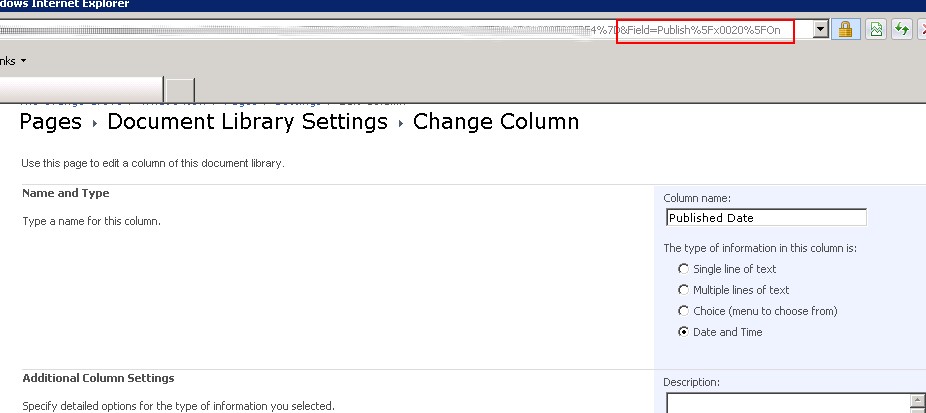
1. Verify the property internal name. You can go the library setting page, click the "Published Date" column, search the "Field" query string inside the URL, and that's column's internal name. It's "Publish%5x0020%5On":

2. Make that "PublishDate" property enable for search result web part to display:
2.1. Open SharePoint Centra Admin -> Manage Application -> Manage Service Application -> Search Application
2.2. Click "Metadate Properties" under "Queries and Results" category on the left panel
2.3. Click "New Managed Property" on the tool bar
2.4. Type "PublishDate" as property name, add "ows_Published_x0020_On" to the mapping, check "Allow this property to be used in scopes" and "Add managed property to custom results set retrieved on each query"

3. Re-crawl the whole content: click "Content Sources" under Crawling category, select the target content source and click "Start Full Crawl". Wait for crawling to be completed.
4. Update Search Core Result WebPart on search result page to display the newly added search property. Because not all content has such column (field), we need to conditionally display this field if it exists, otherwise show the original last modified date.

4.1. Edit the "Search Core Resul" WebPart on the search page, under "Display Properties" category, uncheck "Use Location Visualization".
4.2. Copy the value of "Fetched Proerpties" and paste it to a notepad, add <column name="PublishDate"> in front of <column name="Write"> then paste back the whole string (one line) as "Fetched Proerpties" value, something like:
Note that "publishdate" in the XSLT condition is all lower case. I defined it as "PublishDate" in Search property, and I assumed it remains the same in search return. But that's not the case. Search application always returns a xml with all lower case property name. This can be verified by showing the original search result. In order to see the oringal search result, simply use the following xml for the Search Core Result WebPart:


How to change this default behavior? Let's say, display the date from a page's column (field) named "Published Date". You can do it without any coding! Following are the configuration steps to achieve this:
1. Verify the property internal name. You can go the library setting page, click the "Published Date" column, search the "Field" query string inside the URL, and that's column's internal name. It's "Publish%5x0020%5On":
2. Make that "PublishDate" property enable for search result web part to display:
2.1. Open SharePoint Centra Admin -> Manage Application -> Manage Service Application -> Search Application
2.2. Click "Metadate Properties" under "Queries and Results" category on the left panel
2.3. Click "New Managed Property" on the tool bar
2.4. Type "PublishDate" as property name, add "ows_Published_x0020_On" to the mapping, check "Allow this property to be used in scopes" and "Add managed property to custom results set retrieved on each query"

3. Re-crawl the whole content: click "Content Sources" under Crawling category, select the target content source and click "Start Full Crawl". Wait for crawling to be completed.
4. Update Search Core Result WebPart on search result page to display the newly added search property. Because not all content has such column (field), we need to conditionally display this field if it exists, otherwise show the original last modified date.

4.1. Edit the "Search Core Resul" WebPart on the search page, under "Display Properties" category, uncheck "Use Location Visualization".
4.2. Copy the value of "Fetched Proerpties" and paste it to a notepad, add <column name="PublishDate"> in front of <column name="Write"> then paste back the whole string (one line) as "Fetched Proerpties" value, something like:
<root xmlns:xsi="http://www.w3.org/2001/XMLSchema-instance"><Columns><Column Name="WorkId"/>...4.3. Click "XML Editor", search for:
<Column Name="PublishDate"/><Column Name="Write"/>...
<xsl:call-template name="DisplayString">Replaced by:
<xsl:with-param name="str" select="write"></xsl:with-param>
</xsl:call-template>
<xsl:choose>Now the "Published Date" is shown for those pages with this field defined, and last modified date displays for those pages without this field.
<xsl:when test="string-length(publishdate) > 0">
<xsl:call-template name="DisplayString">
<xsl:with-param name="str" select="publishdate"></xsl:with-param>
</xsl:call-template>
<xsl:otherwise>
<xsl:call-template name="DisplayString">
<xsl:with-param name="str" select="write"></xsl:with-param>
</xsl:call-template>
</xsl:otherwise>
</xsl:when></xsl:choose>
Note that "publishdate" in the XSLT condition is all lower case. I defined it as "PublishDate" in Search property, and I assumed it remains the same in search return. But that's not the case. Search application always returns a xml with all lower case property name. This can be verified by showing the original search result. In order to see the oringal search result, simply use the following xml for the Search Core Result WebPart:
<xsl:stylesheet version="1.0" xmlns:xsl="http://www.w3.org/1999/XSL/Transform">The screen-shot of the original search return:
<xsl:output method="xml" version="1.0" encoding="UTF-8" indent="yes"/>
<xsl:template match="/">
<xmp><xsl:copy-of select="*"/></xmp>
</xsl:template>
</xsl:stylesheet>

Subscribe to:
Posts (Atom)