After Windows Phone 7.1 SDK was installed, a list of Silverlight-based WP project templates will be available in Visual Studio 2010. Then you are ready to create your WP application using Sliverlight(XAML/C#). Yes WP just looks like a special Sliverlight client. You can simply test your WP application simply by the built-in emulator.
I got a Samsung Focus WP handset. I created a simple app and hoped easily to deploy it to the handset device. I thought it's trivial since I found "Windows Phone Device" option right beside the debug button on VS2010 menu. But it's not as easy as I thought.
I connected the handset to the dev machine with a USB cable, then click run with "Windows Phone Device" option. Bingo I got an error telling me that Zune software is not installed. Why deploying a WP app has business with the notorious Zune? Just copying the bad ideal of tethering iPhone on iTune from Apple? Is iZune or iTone a better name for that? No idea what MS is thinking about. Anyway download a 100M Zune package, install it in the dev machine and reboot the machine.
Ready to deploy my own app to the external handset right? The answer is NO! I got another error "Failed to connect to device as it is developer locked". Fantastic the Samsung phone is "locked". Is it locked by MS, Samsung or the carrier? I don't know. But it doesn't look like a carrier lock as iPhone's case.
To unlock a smartphone device, you will have to register a App Hub account, basically a WP/XBOX developer membership costing $99 a year. By paying a hundred bucks, you are eligible to unlock three physical smartphone devices the most. Who figured out the number of 3, instead of 5, 10 or whatever? Guess people from WP team are quite sure that there won't be more than three WP devices around you as a developer. It’s just ridiculous.
So you have a smartphone device, and you want to do some homebrew stuff for yourself and don't want to pay $99/year fee, what should you do? No luck at all! You may end up to an Android device.
WP market share is less than 5 percent, almost ignorable. It's so low that developers are just not willing to work on it. Should MS just make WP development a bit easier in such case? Sigh...
Monday, February 27, 2012
Friday, February 17, 2012
Replacing SharePoint 2010 Content Editor WebPart Links
This console app is to replace those hard-coded URLs inside content editor web parts. In previous post we showed how to extend https://proudctionServer application to https://stagingServer, but some URLs inside the content editor web parts in https://stagingServer are still pointing to https://productionServer. This console will replace them as desired staging URLs.
using System;
using System.Collections.Generic;
using System.Linq;
using System.Text;
using System.Xml;
using System.Web.UI.WebControls.WebParts;
using Microsoft.SharePoint;
using Microsoft.SharePoint.WebPartPages;
using Microsoft.SharePoint.Administration;

namespace ContentEditorWPLinkUpdate
{
    /// <summary>
    /// This console application is to replace hard-coded links inside ContentEditorWebPart.
    /// e.g.
    /// <a href="https://productionServer/news/abcd">abcd news</a>
    /// will be replaced by:
    /// <a href="/news/abcd">abcd news</a>
    /// Run the executable directly or run it with optional parameters:
    /// Cmd:\>ContentEditorWPLinkUpdate [originalLink] [newLink]
    /// </summary>
    class Program
    {
        readonly static string webApplication = "https://productionServer/";
        static string oldUrl = "https://productionServer/";
        static string newUrl = "/";
        static string hrefLinkTeReplaced = string.Format("href=\"{0}", oldUrl);
        static string srcLinkToBeReplaced = string.Format("src=\"{0}", oldUrl);

        static void Main(string[] args)
        {
            if (args.Length > 0)
            {
                oldUrl = args[0].Trim().TrimEnd(new char[] { '/' }) + "/";
                hrefLinkTeReplaced = string.Format("href=\"{0}", oldUrl);
                srcLinkToBeReplaced = string.Format("src=\"{0}", oldUrl);
                if (args.Length > 1)
                    newUrl = args[1].Trim().TrimEnd(new char[] { '/' }) + "/";
            }

            Console.WriteLine("Replacing URL {0} by {1} for content editor WebParts...", oldUrl, newUrl);

            SPWebApplication webApp = SPWebApplication.Lookup(new Uri(webApplication));

            foreach (SPSite siteCollection in webApp.Sites)
            {
                Console.WriteLine("Updating Site collection: " + siteCollection.Url);

                foreach (SPWeb web in siteCollection.AllWebs)
                {
                    UpdateWebRootFolderFiles(web);
                    UpdatePagesFiles(web);
                    web.Close();
                }

                siteCollection.Close();
            }

            Console.WriteLine("Content Editor WebPart links update completed!");
        }

        /// <summary>
        /// Update URL in content editor WebPart
        /// </summary>
        static void UpdateContentEditorWebPart(SPLimitedWebPartManager wpManager, ContentEditorWebPart contentEditor)
        {
            string origContent = contentEditor.Content.InnerText;
            if (origContent.Contains(hrefLinkTeReplaced) || origContent.Contains(srcLinkToBeReplaced))
            {
                XmlDocument xmlDoc = new XmlDocument();
                XmlElement xmlElement = xmlDoc.CreateElement("HtmlContent");
                xmlElement.InnerText = origContent.Replace(hrefLinkTeReplaced, "href=\"" + newUrl).Replace(srcLinkToBeReplaced, "src=\"" + newUrl);
                contentEditor.Content = xmlElement;
                wpManager.SaveChanges(contentEditor);
            }
        }

        /// <summary>
        /// Update files in sites' root folder
        /// </summary>
        static void UpdateWebRootFolderFiles(SPWeb web)
        {
            using (web)
            {
                // Loop through all files in root folder
                if (web.RootFolder.Files != null)
                {
                    foreach (SPFile webRootFile in web.RootFolder.Files)
                    {
                        try
                        {
                            if (webRootFile.Url.ToLower().EndsWith(".aspx"))
                            {
                                using (SPLimitedWebPartManager wpManager = webRootFile.GetLimitedWebPartManager(PersonalizationScope.Shared))
                                {
                                    foreach (System.Web.UI.WebControls.WebParts.WebPart webPart in wpManager.WebParts)
                                    {
                                        if (webPart != null && webPart.GetType().ToString().Contains("ContentEditorWebPart"))
                                        {
                                            ContentEditorWebPart contentEditor = (ContentEditorWebPart)webPart;
                                            UpdateContentEditorWebPart(wpManager, contentEditor);
                                        }
                                    }
                                }
                            }
                        }
                        catch (Exception ex)
                        {
                            Console.WriteLine(string.Format("Error occurs when updating {0} : {1}", webRootFile.ServerRelativeUrl, ex.Message));
                        }
                    }
                }
            }
        }

        /// <summary>
        /// Update Publishing pages
        /// </summary>
        static void UpdatePagesFiles(SPWeb web)
        {
            SPList list = web.Lists.TryGetList("Pages");
            if (list == null)
                return;

            SPFile page = null;
            foreach (SPListItem listItem in list.Items)
            {
                if (!listItem.Url.ToLower().EndsWith(".aspx"))
                    continue;
                try
                {
                    page = web.GetFile(web.Url + "/" + listItem.Url);
                    bool needToUpdate = false;
                    using (SPLimitedWebPartManager wpManager = page.GetLimitedWebPartManager(PersonalizationScope.Shared))
                    {
                        foreach (System.Web.UI.WebControls.WebParts.WebPart webPart in wpManager.WebParts)
                        {
                            if (webPart.GetType().ToString().Contains("ContentEditorWebPart"))
                            {
                                ContentEditorWebPart contentEditor = (ContentEditorWebPart)webPart;

                                string content = contentEditor.Content.InnerText;
                                if (content.Contains(hrefLinkTeReplaced) || content.Contains(srcLinkToBeReplaced))
                                {
                                    needToUpdate = true;
                                }
                            }
                        }
                    }
                    if (needToUpdate)
                    {
                        if (page.CheckOutType != SPFile.SPCheckOutType.None)
                            page.UndoCheckOut();
                        page.CheckOut();

                        string webPartTitles = string.Empty;
                        using (SPLimitedWebPartManager wpManager = page.GetLimitedWebPartManager(PersonalizationScope.Shared))
                        {
                            foreach (System.Web.UI.WebControls.WebParts.WebPart webPart in wpManager.WebParts)
                            {
                                if (webPart != null && webPart.GetType().ToString().Contains("ContentEditorWebPart"))
                                {
                                    ContentEditorWebPart contentEditor = (ContentEditorWebPart)webPart;
                                    UpdateContentEditorWebPart(wpManager, contentEditor);
                                }
                            }
                        }

                        page.CheckIn("Replace hard-coded URL for content editor web part:" + webPartTitles);
                        page.Publish("Replace hard-coded URL for content editor web part:" + webPartTitles);
                    }
                }
                catch (Exception ex)
                {
                    Console.WriteLine(string.Format("Error occurs when updating {0} : {1}", page.ServerRelativeUrl, ex.Message));
                }
            }
        }
    }
}


Wednesday, February 15, 2012
SharePoint 2010 Solution Package Redeployment After Site Extended
Originally we had identical SharePoint 2010 setup in production and staging environments, and both were using the same URLs. In order to visit the staging environment, we need to change machine’s hosts file to point to staging servers. However some business people who need to test the staging server simply don’t have permission to change their hosts file by their own. So we decided to separate the production and staging URLs, one is production.company.com the other is staging.company.com.
When the new DNS entries for staging servers were ready, we started setting up the SharePoint Alternate Access Mapping (AAM) for staging servers. One requirement was that all access needs to be secure so we needed to extend the original web application. Following are steps of the configuration:
1. Open up central admin, go to application management, select the web application and click Extend button on the ribbon
2. In the popup window type following:
3. Go to Application Management -> Configure alternate access mappings -> Edit Public Zone URLs, select the web application and change http://staging.company.com:443 to https://staging.company.com
4. For each front-end server, open up the IIS manager and locate the newly extended site, write down the site ID something like 34561234, the open a command prompt as administrator:
C:\inetpub\AdminScripts>cscript adsutil.vbs set /w3svc/34561234/SecureBindings ":443:staging.company.com"
For more about SSL certificate setup refer to this and this.
5. Go back to IIS manager, select the extended site, and click Edit Bindings. Delete the http binding without SSL certificate and keep the other https one, and then start the IIS site (it’s stopped by default)
6. Optionally copy the original web.config to the extended IIS site if your solution packages are not taking care of all web.config changes.
7. Optionally set the hosts file so that the new DNS entries are pointing to itself, if you have a multiple front-end server farm and NTLM authentication is used. The service calls inside webpart or custom code could possibly route to other front-end server which could lead to the double-hop authentication issue (refer to this). Hosts file setup ensures those service calls always getting to local machine.
The story wasn't stopping yet. We noticed quite a few custom webparts and applications are not working properly after the Web Application is extended. Finally we found SharePoint would redeploy those farm solution packages that have content (such as dll) with deploy target of WebApplication. The redeployment sequence is random which would lead to some problem. In our case, the dll included in the one solution package overrides the newer dll in another solution package. So we redeployed all solution packages with proper order and then the issues were gone.
When the new DNS entries for staging servers were ready, we started setting up the SharePoint Alternate Access Mapping (AAM) for staging servers. One requirement was that all access needs to be secure so we needed to extend the original web application. Following are steps of the configuration:
1. Open up central admin, go to application management, select the web application and click Extend button on the ribbon
2. In the popup window type following:
- a. Port: 443
- b. Host Header: staging.company.com
- c. Zone: Intranet
- d. Other as default
3. Go to Application Management -> Configure alternate access mappings -> Edit Public Zone URLs, select the web application and change http://staging.company.com:443 to https://staging.company.com
4. For each front-end server, open up the IIS manager and locate the newly extended site, write down the site ID something like 34561234, the open a command prompt as administrator:
C:\inetpub\AdminScripts>cscript adsutil.vbs set /w3svc/34561234/SecureBindings ":443:staging.company.com"
For more about SSL certificate setup refer to this and this.
5. Go back to IIS manager, select the extended site, and click Edit Bindings. Delete the http binding without SSL certificate and keep the other https one, and then start the IIS site (it’s stopped by default)
6. Optionally copy the original web.config to the extended IIS site if your solution packages are not taking care of all web.config changes.
7. Optionally set the hosts file so that the new DNS entries are pointing to itself, if you have a multiple front-end server farm and NTLM authentication is used. The service calls inside webpart or custom code could possibly route to other front-end server which could lead to the double-hop authentication issue (refer to this). Hosts file setup ensures those service calls always getting to local machine.
The story wasn't stopping yet. We noticed quite a few custom webparts and applications are not working properly after the Web Application is extended. Finally we found SharePoint would redeploy those farm solution packages that have content (such as dll) with deploy target of WebApplication. The redeployment sequence is random which would lead to some problem. In our case, the dll included in the one solution package overrides the newer dll in another solution package. So we redeployed all solution packages with proper order and then the issues were gone.
Wednesday, January 18, 2012
Display Published Date in SharePoint Search Result
In SharePoint search result, the last modified date of an articel (page) is displayed after the page link by default:

How to change this default behavior? Let's say, display the date from a page's column (field) named "Published Date". You can do it without any coding! Following are the configuration steps to achieve this:
1. Verify the property internal name. You can go the library setting page, click the "Published Date" column, search the "Field" query string inside the URL, and that's column's internal name. It's "Publish%5x0020%5On":

2. Make that "PublishDate" property enable for search result web part to display:
2.1. Open SharePoint Centra Admin -> Manage Application -> Manage Service Application -> Search Application
2.2. Click "Metadate Properties" under "Queries and Results" category on the left panel
2.3. Click "New Managed Property" on the tool bar
2.4. Type "PublishDate" as property name, add "ows_Published_x0020_On" to the mapping, check "Allow this property to be used in scopes" and "Add managed property to custom results set retrieved on each query"

3. Re-crawl the whole content: click "Content Sources" under Crawling category, select the target content source and click "Start Full Crawl". Wait for crawling to be completed.
4. Update Search Core Result WebPart on search result page to display the newly added search property. Because not all content has such column (field), we need to conditionally display this field if it exists, otherwise show the original last modified date.

4.1. Edit the "Search Core Resul" WebPart on the search page, under "Display Properties" category, uncheck "Use Location Visualization".
4.2. Copy the value of "Fetched Proerpties" and paste it to a notepad, add <column name="PublishDate"> in front of <column name="Write"> then paste back the whole string (one line) as "Fetched Proerpties" value, something like:
Note that "publishdate" in the XSLT condition is all lower case. I defined it as "PublishDate" in Search property, and I assumed it remains the same in search return. But that's not the case. Search application always returns a xml with all lower case property name. This can be verified by showing the original search result. In order to see the oringal search result, simply use the following xml for the Search Core Result WebPart:


How to change this default behavior? Let's say, display the date from a page's column (field) named "Published Date". You can do it without any coding! Following are the configuration steps to achieve this:
1. Verify the property internal name. You can go the library setting page, click the "Published Date" column, search the "Field" query string inside the URL, and that's column's internal name. It's "Publish%5x0020%5On":
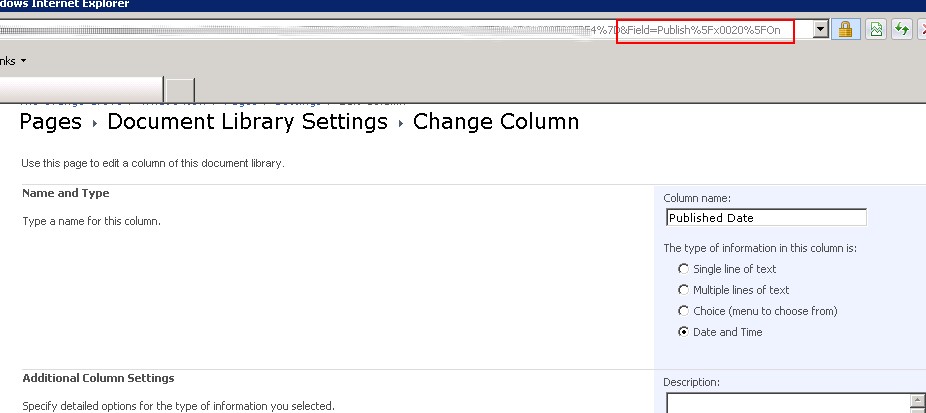
2. Make that "PublishDate" property enable for search result web part to display:
2.1. Open SharePoint Centra Admin -> Manage Application -> Manage Service Application -> Search Application
2.2. Click "Metadate Properties" under "Queries and Results" category on the left panel
2.3. Click "New Managed Property" on the tool bar
2.4. Type "PublishDate" as property name, add "ows_Published_x0020_On" to the mapping, check "Allow this property to be used in scopes" and "Add managed property to custom results set retrieved on each query"

3. Re-crawl the whole content: click "Content Sources" under Crawling category, select the target content source and click "Start Full Crawl". Wait for crawling to be completed.
4. Update Search Core Result WebPart on search result page to display the newly added search property. Because not all content has such column (field), we need to conditionally display this field if it exists, otherwise show the original last modified date.

4.1. Edit the "Search Core Resul" WebPart on the search page, under "Display Properties" category, uncheck "Use Location Visualization".
4.2. Copy the value of "Fetched Proerpties" and paste it to a notepad, add <column name="PublishDate"> in front of <column name="Write"> then paste back the whole string (one line) as "Fetched Proerpties" value, something like:
<root xmlns:xsi="http://www.w3.org/2001/XMLSchema-instance"><Columns><Column Name="WorkId"/>...4.3. Click "XML Editor", search for:
<Column Name="PublishDate"/><Column Name="Write"/>...
<xsl:call-template name="DisplayString">Replaced by:
<xsl:with-param name="str" select="write"></xsl:with-param>
</xsl:call-template>
<xsl:choose>Now the "Published Date" is shown for those pages with this field defined, and last modified date displays for those pages without this field.
<xsl:when test="string-length(publishdate) > 0">
<xsl:call-template name="DisplayString">
<xsl:with-param name="str" select="publishdate"></xsl:with-param>
</xsl:call-template>
<xsl:otherwise>
<xsl:call-template name="DisplayString">
<xsl:with-param name="str" select="write"></xsl:with-param>
</xsl:call-template>
</xsl:otherwise>
</xsl:when></xsl:choose>
Note that "publishdate" in the XSLT condition is all lower case. I defined it as "PublishDate" in Search property, and I assumed it remains the same in search return. But that's not the case. Search application always returns a xml with all lower case property name. This can be verified by showing the original search result. In order to see the oringal search result, simply use the following xml for the Search Core Result WebPart:
<xsl:stylesheet version="1.0" xmlns:xsl="http://www.w3.org/1999/XSL/Transform">The screen-shot of the original search return:
<xsl:output method="xml" version="1.0" encoding="UTF-8" indent="yes"/>
<xsl:template match="/">
<xmp><xsl:copy-of select="*"/></xmp>
</xsl:template>
</xsl:stylesheet>

Friday, December 23, 2011
SharePoint 2010 Migration
After a few months of preparation and testing we finally upgraded our production portal from MOSS 2007 to SharePoint 2010 about two weeks ago. There’s no major issue reported/found so far, and the overall feedback from the end users is positive.
The database approach was used in our migration, i.e. install a new SharePoint 2010 farm and mount the old MOSS 2007 databases. The migration process looks straightforward: run preupgradecheck then fix the issues, and run Test-SPContentDatabase then fix the issues, and finally run Mount-SPContentDatabase. Fixing those issues wasn't too hard but just a matter of time.
We had spent quite a lot of effort on content analysis and cleanup with our 60+G of content databases. At the end all our custom WebParts, dlls, user controls and some other SharePoint resources were repackaged into one solution called "SP2010Migration" that only builds one solution package for all.

The SP2010Migration solution package was supposed to deployed only once and that’s all. It shouldn’t be used anymore unless to build a new farm from scratch again. There’s no Feature in the solution package because it may bring trouble in later deployment. So in the future we can still package any WebPart or component into a Feature without concern of Feature conflict.
One interesting thing is that all user controls loaded by SmartParts were still working fine after migration. But we got some issues with the DataFormWebPart. For example the relative link was’t wrong after migration, and we had to write a console app to replace all "{@FileRef}" by "/{@FileRef}" inside each DFWP’s XSLT across the whole farm.
Another DFWP issue seemed to be more confusing where we only saw error in the DFWP page:
That’s something new in SharePoint 2010 and also something annoying by Microsoft. It's great to introduce new stuff but it's also important to keep old stuff work right? Why not just turned off that new “time-out” feature by default and let end users to have an option to set it?
The worst thing is that there's no way to change that 1-second time-out setting! Microsoft provided "three solutions" for this issue:
1.) Tune XSL to get shorter transform time.
2.) Don't use DFWP instead use other WebPart.
3.) Write code to inherit DFWP and build your own.
Following the instruction we finally got the DFWP back after tweaking its settings, e.g. less columns and smaller page size. That's of course not an ideal way to solve the problem. We hope Microsoft could provide a better solution on this issue.
[2012-3 Update]: The time-out value of a DFWP now is configurable in Farm level with latest SharePoint CU. Refer to this.
The database approach was used in our migration, i.e. install a new SharePoint 2010 farm and mount the old MOSS 2007 databases. The migration process looks straightforward: run preupgradecheck then fix the issues, and run Test-SPContentDatabase then fix the issues, and finally run Mount-SPContentDatabase. Fixing those issues wasn't too hard but just a matter of time.
We had spent quite a lot of effort on content analysis and cleanup with our 60+G of content databases. At the end all our custom WebParts, dlls, user controls and some other SharePoint resources were repackaged into one solution called "SP2010Migration" that only builds one solution package for all.

The SP2010Migration solution package was supposed to deployed only once and that’s all. It shouldn’t be used anymore unless to build a new farm from scratch again. There’s no Feature in the solution package because it may bring trouble in later deployment. So in the future we can still package any WebPart or component into a Feature without concern of Feature conflict.
One interesting thing is that all user controls loaded by SmartParts were still working fine after migration. But we got some issues with the DataFormWebPart. For example the relative link was’t wrong after migration, and we had to write a console app to replace all "{@FileRef}" by "/{@FileRef}" inside each DFWP’s XSLT across the whole farm.
Another DFWP issue seemed to be more confusing where we only saw error in the DFWP page:
Unable to display this Web Part. To troubleshoot the problem, open this Web page in a Microsoft SharePoint Foundation-compatible HTML editor such as Microsoft SharePoint Designer. If the problem persists, contact your Web server administrator. Correlation ID:…
By Correlation ID we could easily find out the error detail from ULS log:Error while executing web part: System.StackOverflowException: Operation caused a stack overflow. At Microsoft.Xslt.NativeMethod.CheckForSufficientStack() at SyncToNavigator(XPathNavigator , XPathNavigator ) at …
I tested the setting locally and everything seemed to be okay. How come a out-of-box SharePoint WebPart got a “stack overflow” error in production and it used to be working fine before migration? It turned out that time-out scenario occurred internally during XSL transform process in DFWP in production environment. That time-out threshold is only 1-second which means anything longer than 1 second will cause the error. We have a big list in our production server and the DFWP displays hundreds of rows in a big table which caused the time-out error.That’s something new in SharePoint 2010 and also something annoying by Microsoft. It's great to introduce new stuff but it's also important to keep old stuff work right? Why not just turned off that new “time-out” feature by default and let end users to have an option to set it?
The worst thing is that there's no way to change that 1-second time-out setting! Microsoft provided "three solutions" for this issue:
1.) Tune XSL to get shorter transform time.
2.) Don't use DFWP instead use other WebPart.
3.) Write code to inherit DFWP and build your own.
Following the instruction we finally got the DFWP back after tweaking its settings, e.g. less columns and smaller page size. That's of course not an ideal way to solve the problem. We hope Microsoft could provide a better solution on this issue.
[2012-3 Update]: The time-out value of a DFWP now is configurable in Farm level with latest SharePoint CU. Refer to this.
Wednesday, December 07, 2011
A SharePoint Double Hop Issue
A SharePoint DataForm Web Part is not working properly sometimes after migrating from SharePoint 2007 to a SharePoint 2010 environment. Oringal ShaerPoint 2007 farm only has one front-end server and the new SharePoint 2010 farm includes two front-end servers and one application server. NTLM authentication is used in both SharePoint 2007 and 2010 environment.
The DataForm web part is working okay in SharePoint designer, and it's invoking the SharePoint Profile Service to retrieve some user profile data.
The ULS log shows (401) Unauthorized error:
Apparently that service call was routed to the other front-end server and then got access error. We verify that the SharePoint Web Services in both front-end servers do have anonymous access enabled. So why access error still happened?
Since the user has already authenticated to the site, the service call inside the DataForm webpart would automatically impersonate the original user instead of accessing outside as anonymous user, and that service call would fail in the other front-end server due to the NTLM setup in our environment. This is a typical NTLM double-hop issue.
Why the service call is not ending at local machine? Well it does sometimes and that's why it works sometimes. The problem is caused by the round robin DNS setup. To resolve the problem, simply add related entries to front-end servers' hosts file with domain name(s) pointing to local server. Then such service calls will always go to local machine and the double-hop issue will be gone.
The DataForm web part is working okay in SharePoint designer, and it's invoking the SharePoint Profile Service to retrieve some user profile data.
The ULS log shows (401) Unauthorized error:
w3wp.exe (0x1150) Error while executing web part: System.Net.WebException: The remote server returned an error: (401) Unauthorized. at System.Net.HttpWebRequest.GetResponse() at ....
Apparently that service call was routed to the other front-end server and then got access error. We verify that the SharePoint Web Services in both front-end servers do have anonymous access enabled. So why access error still happened?
Since the user has already authenticated to the site, the service call inside the DataForm webpart would automatically impersonate the original user instead of accessing outside as anonymous user, and that service call would fail in the other front-end server due to the NTLM setup in our environment. This is a typical NTLM double-hop issue.
Why the service call is not ending at local machine? Well it does sometimes and that's why it works sometimes. The problem is caused by the round robin DNS setup. To resolve the problem, simply add related entries to front-end servers' hosts file with domain name(s) pointing to local server. Then such service calls will always go to local machine and the double-hop issue will be gone.
Wednesday, November 30, 2011
Using Powershell to Update SharePoint 2010 User Profile
In previous post a small piece of code demos a simple way to update the user profile picture by object model. The same task can also be achieved easily using Powershell:
What about a SharePoint 2010 environment upgraded from SharePoint 2007? All the user pictures are still pointing to the old location. However, you can use following Powershell script to migrate all those pictures:
1. http://mysite/User Photos/Profile Pictures/SP2010_test_LThumb.jpg
-- size: 148x148 pixel
-- exmaple of usage: mysite title image
2. http://mysite/User Photos/Profile Pictures/SP2010_test_MThumb.jpg
-- size: 96x96
-- exmaple of usage: people search result image
3. http://mysite/User Photos/Profile Pictures/SP2010_test_SThumb.jpg
-- size: 36x36 small image
-- exmaple of usage: mysite colleague photo
One common scenario is to update test accounts' email address so testers/developers can get the email notification in the test environment. User's email address used by SharePoint to send the email notification is not directly from the user profile, instead it's from a user record in the User Information List tied to top site collection (the user info list data could be overridden by user profile service). In order to change a user's email address you have to modify the list item value in the user information list for a given site:
This is not related to user profile, but it's also common issue in a migrated SharePoint environment. A SharePoint 2010 farm migrated from SharePoint 2007 without visual upgrade will keep the old UI. But you will notice a new site created after migration (root site or subsite) would always use the new SharePoint 2010 UI. In case you just want to keep the old UI and don't have a short-term plan for UI upgrade, how to revert the new created site back to previous version? Simply a few lines of script:
For more hands-on Powershell scripts used in SharePoint environment, refer to this codeplex project complied by a few SharePoint gurus.
$userAccount = "SP2010\test"
$newPictureURL = "http://SP2010Site/Photos/test.jpg"
$site = Get-SPSite("http://SP2010Site")
$context = Get-SPServiceContext $site
$profileManager = New-Object Microsoft.Office.Server.UserProfiles.UserProfileManager($context)
$userProfile = $profileManager.GetUserProfile($userAccount)
$userPicture["PictureURL"].Value = $newPictureURL
$userProfile.Commit()
Actually there's some improvement in SharePoint 2010 user photo management. Instead of one picture being used everywhere in SharePoint 2007, SharePoint 2010 maintains three different profile pictures to be used in different contexts. Three images will be created when a user uploaded a picture which are stored in a library folder inside MySite's root site: http://mysite/User Photos/Profile Picture. You can get more detailed SharePoint 2010 photo management from this MSDN blog.
What about a SharePoint 2010 environment upgraded from SharePoint 2007? All the user pictures are still pointing to the old location. However, you can use following Powershell script to migrate all those pictures:
Update-SPProfilePhotoStore -MySiteHostLocation http://SPMySite/What it does is rebuild all user pictures from previous verion. For example, a user with AD account of SP2010\test has the picture location of http://sp2010site/Profile Pictures/test.jpg. Then three images will be created after above Powershell command execution:
1. http://mysite/User Photos/Profile Pictures/SP2010_test_LThumb.jpg
-- size: 148x148 pixel
-- exmaple of usage: mysite title image
2. http://mysite/User Photos/Profile Pictures/SP2010_test_MThumb.jpg
-- size: 96x96
-- exmaple of usage: people search result image
3. http://mysite/User Photos/Profile Pictures/SP2010_test_SThumb.jpg
-- size: 36x36 small image
-- exmaple of usage: mysite colleague photo
One common scenario is to update test accounts' email address so testers/developers can get the email notification in the test environment. User's email address used by SharePoint to send the email notification is not directly from the user profile, instead it's from a user record in the User Information List tied to top site collection (the user info list data could be overridden by user profile service). In order to change a user's email address you have to modify the list item value in the user information list for a given site:
$web = Get-SPWeb http://sp2010site
$userInfoList = $web.Lists | where { $_.Title -eq "User Information List" }
$userAccount = $userInfoList.Items | where { $_["Account"] -eq "sp2010\test" }
$userAccount["Work e-mail"] = "whatevername@whatever.com"
$userAccount.Update()
Be aware that the modification could be overridden by user profile service's scheduled synchronization if you have user profile service enabled.This is not related to user profile, but it's also common issue in a migrated SharePoint environment. A SharePoint 2010 farm migrated from SharePoint 2007 without visual upgrade will keep the old UI. But you will notice a new site created after migration (root site or subsite) would always use the new SharePoint 2010 UI. In case you just want to keep the old UI and don't have a short-term plan for UI upgrade, how to revert the new created site back to previous version? Simply a few lines of script:
$web = Get-SPWeb http://sp2010site/newsite
$web.UIVersion = 3
$web.MasterUrl = "/newsite/_catelogs/masterpage/homepagev3.master"
$web.AlternateCssUrl = "newsite/style library/customlayout.css"
$web.Update()
Tuesday, November 29, 2011
SharePoint Server 2010 User Profile
There's no big change between SharePoint Server 2010 and MOSS 2007 in terms of User Profile management. The MOSS 2007 user profile database attached to SSP (Shared Service Provider) can be mounted directly to SharePoint Server 2010 User Profile Service Application. The mount process actually upgrades the MOSS 2007 user profile database. You will notice some new tables and columns are added in the backend database. Following image shows the scheme change made on the UserProfile_Full table in user profile database.

The User Information List is still there in each top site collection where SharePoint foundation manitains the basic user data. A record will be added to the User Information List when a user or a group is first referenced by the SharePoint environment. The initial User Information data, like title, user login, email address, etc., are imported from the authentication provider such as Active Directory. In SharePoint Foundation 2010 the User Information List is updated when you modify user info through "My Settings". All User Information List data are stored in the UserInfo table in content database:

Once the User Profile Service is enabled in SharePoint Server 2010, the User Information List became read-only for end user except the "Mobile Number" property, and user profile database is updated when the user modifying "My Settings", instead of the User Information List (UserInfo table). A timer job is responsible for replicating the user profile data to User Information data for each top site collection, and User Information List data will be overridden unless the corresponding property is not set to "Replicable" in User Profile Service:

Sometime it would cause some confusion when the User Information data are not synced to the User Profile data. Remember regular SharePoint sites always get user info from the User Information List but the User Profile content are the original data source when User Profile Service is enabled.
There's slight difference in SharePoint 2010 when accessing or updating the user profile data comparing with SharePoint 2007. In MOSS 2007, Microsoft.Office.Server.ServiceContext is available and you can create a UserProfileManager object from a ServiceContext. In SharePoint 2010 ServiceContext is replaced by the new Microsoft.SharePoint.SPServiceContext:

The User Information List is still there in each top site collection where SharePoint foundation manitains the basic user data. A record will be added to the User Information List when a user or a group is first referenced by the SharePoint environment. The initial User Information data, like title, user login, email address, etc., are imported from the authentication provider such as Active Directory. In SharePoint Foundation 2010 the User Information List is updated when you modify user info through "My Settings". All User Information List data are stored in the UserInfo table in content database:

Once the User Profile Service is enabled in SharePoint Server 2010, the User Information List became read-only for end user except the "Mobile Number" property, and user profile database is updated when the user modifying "My Settings", instead of the User Information List (UserInfo table). A timer job is responsible for replicating the user profile data to User Information data for each top site collection, and User Information List data will be overridden unless the corresponding property is not set to "Replicable" in User Profile Service:

Sometime it would cause some confusion when the User Information data are not synced to the User Profile data. Remember regular SharePoint sites always get user info from the User Information List but the User Profile content are the original data source when User Profile Service is enabled.
There's slight difference in SharePoint 2010 when accessing or updating the user profile data comparing with SharePoint 2007. In MOSS 2007, Microsoft.Office.Server.ServiceContext is available and you can create a UserProfileManager object from a ServiceContext. In SharePoint 2010 ServiceContext is replaced by the new Microsoft.SharePoint.SPServiceContext:
The method simply goes through each user profile, and updates the user photo by some custom logic (GetUserPhotoLocation method). Notice Microsoft.Office.Server.UserProfiles has become a separate dll in SharePoint 2010, so in order to get above code compiled you need to add Microsoft.Office.Server and Microsoft.Office.Server.UserProfiles to the references.
    void UpdateUserProfiles(string siteUrl)
    {
        string userName = null;
        using (SPSite spSite = new SPSite(siteUrl))
        {
            //ServiceContext is obsolete in SharePoint 2010
            //UserProfileManager userProfileManager = new UserProfileManager(ServerContext.GetContext(spSite));

            UserProfileManager userProfileManager = new UserProfileManager(SPServiceContext.GetContext(spSite));

            foreach (UserProfile profile in userProfileManager)
            {
                string account = Convert.ToString(profile[PropertyConstants.AccountName].Value);
                if (string.IsNullOrEmpty(account) || account.IndexOf("\\") <= 0)
                    continue;
                userName = account.Substring(account.IndexOf("\\"));
                profile[PropertyConstants.PictureUrl].Value = GetUserPhotoLocation(userName);
                profile.Commit();
            }
        }
    }
Thursday, October 27, 2011
Invoke SharePoint Workflow Programmatically
There's some restricted SharePoint sites and content in your SharePoint environment, and users can only interact with secure SharePoint resources through custom webpart(s). A typical example is performance review system. For simplicity let's say each department has a site or subsite to store the review data. You create a SPList for each year's review like PerformanceReview-2011, PerformanceReview-2012, etc. Only the management team members of a department can have direct access to the department performance review site. Every employee can input the data and respond manager's question/review through a custom webpart. Usually RunWithElevatedPrivileges is used inside the WebPart to get through the permission issue for SPList content update as code below:
    SPSecurity.RunWithElevatedPrivileges(delegate()
    {
        using (SPSite site = new SPSite(siteID))
        {
            using (SPWeb web = site.OpenWeb(webID))
            {
                SPList list = web.Lists.TryGetList(listName);
                //Update List Item ...
            }
        }
    });
A workflow associated with the List is supposed to automatically kick off doing some extra stuff such as assigning task to corresponding managers. The problem is that the execution context of above code is system account, and updating List Item with System account won't trigger the workflow. So you have to start the workflow manually inside the WebPart:
    // Start a workflow manually since system account won't trigger workflow automatically
    private static void StartWorkflow(SPListItem listItem, string workflowName)
    {
        try
        {
            var listWorkflowAssociations = listItem.ParentList.WorkflowAssociations;
            foreach (SPWorkflowAssociation wfAssoication in listWorkflowAssociations)
            {
                if (wfAssoication.Name == workflowName)
                {
                    listItem.Web.Site.WorkflowManager.
                      StartWorkflow(listItem, wfAssoication, wfAssoication.AssociationData, true);
                    break;
                }
            }
        }
        catch (Exception ex)
        {
            // Exception handling
        }
    }
Bear in mind that the Associator, Initiator and Current User inside Workflow context all are system account with such implementation. You have to use People field defined in List Item to reference the original user.
Friday, October 21, 2011
Event Receivers Issue After Migration From SharePoint 2007 to SharePoint 2010
We have a SharePoint 2007 site created by Reservations Template (part of WSS 3.0 Application Templates). The site is used for company-wide meeting room booking. After migrating to SharePoint 2010 (database-attachment approach) the room-booking system was not working properly. Same resource can be doubly booked and sometimes you can't book some resources while they show as available in the UI.
After some digging I found the problem was caused by the Event Receiver associated with the Reservations List. Originally in SharePoint 2007 the Reservations List has registered the Event Receivers with assembly of "ReservationEventHandler, Version=12.0.0.0, Culture=neutral, PublicKeyToken=71e9bce111e9429c". That assembly registration became "ReservationEventHandler, Version=14.0.0.0, Culture=neutral, PublicKeyToken=71e9bce111e9429c" after migration for some reason. To fix the problem, we simply correct the List's event registry:
After some digging I found the problem was caused by the Event Receiver associated with the Reservations List. Originally in SharePoint 2007 the Reservations List has registered the Event Receivers with assembly of "ReservationEventHandler, Version=12.0.0.0, Culture=neutral, PublicKeyToken=71e9bce111e9429c". That assembly registration became "ReservationEventHandler, Version=14.0.0.0, Culture=neutral, PublicKeyToken=71e9bce111e9429c" after migration for some reason. To fix the problem, we simply correct the List's event registry:
static void FixReservationEventReceivers(SPSite site, string webUrl, string listName)
{
    using (SPWeb web = site.OpenWeb(webUrl))
    {
        bool hasAddingEvent = false, hasDeletingEvent = false, hasUpdatingEvent = false;
        SPList list = web.Lists.TryGetList(listName);
        List<SPEventReceiverDefinition> invalidReceivers = new List<SPEventReceiverDefinition>();
        foreach (SPEventReceiverDefinition item in list.EventReceivers)
        {
            if (item.Assembly.Contains("ReservationEventHandler") && item.Assembly.Contains("Version=14.0.0.0"))
                invalidReceivers.Add(item);
            if (item.Assembly.Contains("ReservationEventHandler") && item.Type == SPEventReceiverType.ItemAdding)
                hasAddingEvent = true;
            if (item.Assembly.Contains("ReservationEventHandler") && item.Type == SPEventReceiverType.ItemDeleting)
                hasDeletingEvent = true;
            if (item.Assembly.Contains("ReservationEventHandler") && item.Type == SPEventReceiverType.ItemUpdating)
                hasUpdatingEvent = true;
        }
        foreach (var item in invalidReceivers)
        {
            item.Delete();
        }

        string assemblyName = "ReservationEventHandler, Version=12.0.0.0, Culture=neutral, PublicKeyToken=71e9bce111e9429c";
        string className = "Microsoft.SharePoint.ApplicationTemplates.ReservationEventHandler";
        if (!hasAddingEvent)
            list.EventReceivers.Add(SPEventReceiverType.ItemAdding, assemblyName, className);
        if (!hasDeletingEvent)
            list.EventReceivers.Add(SPEventReceiverType.ItemDeleting, assemblyName, className);
        if (!hasUpdatingEvent)
            list.EventReceivers.Add(SPEventReceiverType.ItemUpdating, assemblyName, className);
    }
}
You may wonder what those event receivers do with the List item. The explanation is lengthy but not worthy knowing to be honest. The template was not well designed and implemented in my opinion. I spent quite a bit of time to customize and optimize the template. Actually we don't need those event receivers anymore after my modification and the performance of the booking system has been improved significantly since then (hundreds of thousands of records in our Reservations List). I may write some notes about that later.
Subscribe to:
Posts (Atom)