Thursday, June 13, 2013

More on Cross-domain Authentication

In my previous post I mentioned that it's impossible to do NTLM or Kerberos authentication with client side JavaScript in cross-domain requests. We know username and password can be used in JavaScript Ajax calls for BASIC authentication, but not for NTLM or Kerberos. However my above statement is not fully true since on top of JavaScript the browser could do some magic for you. Thanks my colleague Antonio for correcting me on this. He has a test environment with Kerberos setup where a test user logged on domainA can visit a page from http://companyB.com in domainB, and inside that page JavaScript Ajax calls successfully grab data from http://companyA.com in domainA using JSONP and Kerberos authentication without user typing in username and password. What he did is simply add http://companyA.com to Local Intranet zone in IE, then IE will automatically logon http://companyA.com with Kerberos authentication seamlessly.

In this post I will explore some common scenarios related to browser or AJAX authentication, including Intranet and Internet environment. Note that for those public sites and services that allow anonymous access the cross-domain authentication issue doesn't exist at all.

1. The browser is in the same domain as the server (Windows Authentication).

If the user is in the same domain as the server where the cross-domain requests go to, such as above Kerberos case, the single-sign-on (SSO) would work with NTLM or Kerberos authentication, i.e. IE would auto-authenticate to the server with the current logged in Windows account. No user input is required in this case but the server has to be added to the Local Intranet zone. The key point is the the "Automatic logon only in intranet zone" setting in Local Intranet zone:

How about other browsers? Chrome shares the same network configuration with IE, so the IE settings will apply to Chrome and the auto-logon would just work fine in Chrome. In Firefox you need to open up the system configuration by typing "about:config" in the address bar, then double click the "network.automatic-ntlm-auth.trusted-uris" entry and set the domain names you want to auto-authenticate to, e.g. "google.com, microsoft.com" (not in "*.google.com" format which is used in IE trusted sites).

If the authentication failed, the browser will popup a login window to let you input your username and password.

2. The browser is not in the same domain as the server (Windows Authentication).

If the user is not in the same domain as the server where the cross-domain requests go to, e.g. a user logs into domainA and accesses a web page in which some JavaScript Ajax calls to http://companyB.com in domainB, then the single-sign-on won't work because domainA users can not be authenticated by domainB so a login window will pop up for user to input the username and password. In IE you have the option to save the password in this case:
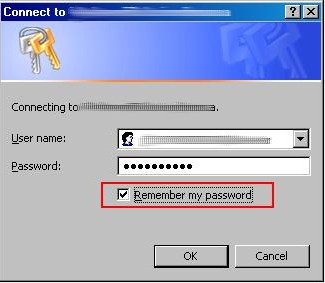
After you select to save your password then next time IE will automatically authenticate for you (no need to input username and password again) on the same site if the "Automatic logon with current user name and password" is configured for the zone:

You can only save the password in IE but not in Chrome or Firefox. When the password is saved the Chrome will have the same behavior as IE, and you need to configure the same "network.automatic-ntlm-auth.trusted-uris" setting to let Firefox do the auto-authentication.

Where the password is saved by IE? They are stored in Windows secure storage. You can see and update those saved usernames and passwords by clicking "Control Panel => User Account => Advanced => Manage Password" or run "control keymgr.dll" command:

Just like the previous case you will also see a browser login window if the authentication failed.

3. Server is Form authentication.

In Form authentication you submit your username and password to the server. The server will issue an authentication cookie to the client if username and password are valid, then you are authenticated and logged on. The interactive steps are purely HTML and all browsers have the same behavior. After logging in the authentication cookie will be sent by browser in the consequent calls to the same server with same URI domain. The auto-authentication of AJAX calls will be okay if the cookie is valid which means that you have logged in to the server before the AJAX call. In some login forms you can select to "keep me logged in" option where a persistence cookie is generated for long time usage so you can auto-login next time even you close and reopen the browser.

Not like Windows authentication, browser will not popup a login window when authentication failed in AJAX calls, instead any error is silently swallowed by the browser by default. In Form authentication the server will respond to the client to redirect to the login page which is not recognized by AJAX call. Of course you can handle that specific 302 redirect case and popup a login window using JavaScript but that's another story.

4. How about OpenID, SAML, OAuth, Claimed based authentication, Federated authentication...?

In most cases the behavior is the same as Form authentication: access would be okay if you have signed in before the AJAX calls. This is valid as long as the server is using cookie to trace the authentication status, such as Windows and Form authentication discussed above, otherwise the authentication immediately fails. How to know if the server is using authentication cookie? You can check if you are able to access the site assets after successfully authenticated through the browser.

There're some cases where each service request requires authentication. The AJAX call will fail in such case unless you provide required data. One example is the new Twitter API V1.1: every Twitter API service call now requires OAuth authentication. Setting OAuth header using JavaScript directly is impractical and unsafe (however you could calculate the OAuth signature from the web server and JavaScript simply pass it to the Twitter service).

Also like Form authentication, you won't see any popup window whenever the authentication fails, and the AJAX calls are simply failed.

5. What about SSL, SSL client authentication?

SSL, also known as https protocol, encrypts the data in transport layer so the communication between the client and the server is protected. SSL itself doesn't do anything for Authentication. However server certificate is required to establish a SSL connection. The AJAX calls will fail if the server certificate is invalid such as a self-signed certificate. Browser will display a warning message if you visit the server with invalid certificate directly (not from AJAX call):

In order to get rid of the warning message, you could install the certificate and put it into Trusted Root Certification Authorities for IE and Chrome (caution of doing so) or import it to Firefox. After that you can visit the site without seeing the warning message page, and the AJAX calls now will be able to go through to the server for authentication.

SSL client authentication is another story. Basically SSL server also asks client's certificate when setting up the SSL connection. The SSL client authentication can be configured as optional or required. If client authentication is required the SSL connection will fail if browser doesn't provide a certificate, or the certificate is invalid, or the certificate is not accepted. If the SSL client authentication is okay, the SSL connection will be established and the regular server side authentication will come to play in the next step.

In summary, an indicator of a successful AJAX call is that you can browse the resource or service directly without any issue. The statement is okay for same-domain AJAX calls, but that's not enough in cross-domain scenarios where you can visit the site successfully in the browser but the cross-domain AJAX calls fail (such failure is not caused by client-server authentication). Cross-domain AJAX communication requires special implementation in both client side and server side, for example, you can define {crossDomain: true, dataType: 'jsonp'} parameters for jQuery AJAX calls in the client side, and implement JSONP or CORS in the server side. Following html page is created to test the cross-domain request using jQuery. Simply save the html page in your local machine, open the page and run the test:

<html xmlns="http://www.w3.org/1999/xhtml">
<head>
    <meta http-equiv="content-type" content="text/html; charset=utf-8" />          
    <title>Cross-domain AJAX test</title>          
    <script src="http://ajax.googleapis.com/ajax/libs/jquery/1.9.1/jquery.min.js" ></script>
</head>     
<body>         
    <div>
        <div style="text-align:center">
            <h3>Cross-domain AJAX test</h3>
            Server URL:  <input name="txtUrl" type="text" id="txtUrl" style="width:500px;" />
            <button id="btnTest">Send cross-domain request</button>
        </div>
        <div id="result"></div>
    </div>
    <script type="text/javascript">
        $(document).ready(function() {
            $("#btnTest").click(function () {
                testRequest($("#txtUrl").val());    
            });
        });
        
        function testRequest(url) {
            $("#result").html("");
            if (url) {
                $.ajax({url: url, cache: false, crossDomain: true, dataType: 'jsonp'})
                .done(function(data) {
                    var value = getDataString(data);//decodeURIComponent($.param(myObject));
                    $("#result").html("Response:<pre>" + value + "</pre>");})
                .fail(function(xhr, err) {
                    $("#result").html("Error occurs.");
                });    
            } else {
                $("#result").html("Invalid Url.");
            }
        }
        
        // http://www.sitepoint.com/javascript-json-serialization/
        function  getDataString(obj) { 
            var t = typeof (obj);
            if (t != "object" || obj === null) {
                // simple data type
                if (t == "string") 
                    obj = '"'+obj.replace(/>/g,'&gt;').replace(/</g,'&lt;')+'"';
                return String(obj);
            } else {
                // recurse array or object
                var n, v, json = [], arr = (obj && obj.constructor == Array);
                for (n in obj) {
                    v = obj[n]; t = typeof(v);
                    if (t == "string") 
                        v = '"'+v+'"';
                    else if (t == "object" && v !== null) 
                        v = getDataString(v);
                    json.push((arr ? "" : '"' + n + '":') + String(v));
                }
                return (arr ? "[" : "{") + String(json) + (arr ? "]" : "}");
            }
        };
    </script>
</body>
</html>

Thursday, June 06, 2013

Using FusionCharts in SharePoint

FusionCharts provide a separate product for SharePoint called Collabion Charts for SharePoint a SharePoint, where you can build charting pages easily in SharePoint by adding those charting WebParts. You have options to show FusionCharts in SharePoint if you have already purchased FusionCharts license and you don't want to pay extra for Collabion Charts. First you can use SharePoint as hosting environment, put all FusionCharts assets and the charting pages into a document library. Everything should just work fine. You can also add FusionCharts to a WebPart using out-of-box Content Editor WebPart (CEWP). First reference the FusionCharts JavaScript in one CEWP (edit HTML Source):
    <script src="/Documents/FusionCharts/FusionCharts.js" type="text/javascript"></script>
Then you can add chart in another CEWP:
    <div><div id="testChartContainer"></div></div>
    <script type="text/javascript">
    <!--  
        FusionCharts.setCurrentRenderer('javascript'); 
        var testChart = new FusionCharts( { id: "chart1", type: "Column2D", width: "400", height: "250"} );  
        testChart.setXMLUrl("/Documents/testChart.xml");      
        testChart.render("testChartContainer");
    // -->      
    </script>


Note: SharePoint 2010 could change the content you added to the CEWP via HTML Source editor. You need to make sure that the updated content and script are still valid.

Monday, June 03, 2013

A JavaScript Charting Solution - FusionCharts

Recently I have been working on FusionCharts to build dashboard pages. I think it's worthy writing some notes of my experience of using FusionCharts.

First of all, FusionCharts customer services are very good. I downloaded a trial version and did some testing. Then I have some issues and questions to ask. I always got their reply on the same day. FusionCharts is an India company. A few times I even received their replies in the afternoon which is midnight there (I am in UTC-5 zone). Overall they are helpful and respond quickly even although I am not their customer yet.

Secondly FusionCharts are purely client site implementation using Flash and JavaScript. All my discussion in this article is based on their JavaScript solution. That's different from some other data visualization tools I used before, such as Dundas, Infragistrics and DevExpress, all of which are .NET components, and they are considered as server side solution where you build your charts in ASP.NET code behind, and the charting images are generated in the server side.

The good part of client side approach is easy to develop and deploy. You simply create a HTML page, add desired FusionCharts objects, set their data source using JavaScript then you are done. The chart page can be put to anywhere that the user can access to such as in a web server, a shared drive or even local box, as long as the data source is also accessible to the user. In addition the client side JavaScript is considered as a cross-platform solution being able to run in different environment.

The drawbacks of client side approach include the potential performance issue, and the cross-domain data source restriction, as discussed below in detail.

Performance Issue

The charts are populated and rendered inside the browser. The performance could be an issue if you have many charts on a page. One simple dashboard test page with 10 charts consuming static content takes 3-5 seconds to render in latest Firefox and Chrome, and IE8/9 are even worst taking a least double time to render the page. Note that the tests are conducted locally so in reality the network round-trip would introduce some more delay. This may not be unacceptable in some cases. One suggestion from FusionCharts to improve the performance is wrap the charting JavaScript inside a setTimeout function and that would make the page a little bit more responsive during the page initial load:

    setTimeout(function () {
        var myChart= new FusionCharts( { id: "chart1", type: "Column2D", width: "400", height: "250"} );  
        myChart.setXMLUrl("chart1.xml");      
        myChart.render("chart1"); 
    }, 0);

Cross Domain Data Source Issue

FusionCharts support XML or JSON data source. The chart data can be embedded inside the page, static file or dynamically loaded from the server. There will be a cross-domain issue if the data source is not coming from the same domain as the original one hosting the page. For instance, if the chart page is from http://companyA.com, then all data from http://companyB.com will be rejected by the browser.

Recent version of Firefox and Chrome as well as IE10 support CORS standard to resolve the cross-domain issue. Basically the response from http://companyB.com includes some specific headers informing the browser to accept this cross-domain data. For above example the header "Access-Control-Allow-Origin: http://companyA.com" or "Access-Control-Allow-Origin: *" would work. Another generic solution for cross-domain requests is use JSONP. The client sends a request with a callback function name and the server wraps all the data as a parameter for that callback function.

Following code snippet demos how to implement CORS and JSONP in .NET:

using System;
using System.Collections.Generic;
using System.Linq;
using System.Web;
using System.Text;

namespace DataService
{
    /// <summary>
    /// Web handler to serve FusionCharts data using JSONP or CORS to resolve cross-domain issue 
    /// </summary>
    public class FusionChartService : IHttpHandler
    {

        public void ProcessRequest(HttpContext context)
        {
            string data = GetData(); // Populate chart data
            bool isJsonFormat = false; // Are data JSON format?
            
            context.Response.ContentEncoding = System.Text.Encoding.UTF8;
            context.Response.ContentType = "text/plain";

            if (string.IsNullOrEmpty(callback)) // Add CORS headers if NOT JSONP
            {
                context.Response.AppendHeader("Access-Control-Allow-Origin", "*");
                context.Response.AppendHeader("Access-Control-Allow-Headers", "Content-Type");
                string requestHeaders = context.Request.Headers["Access-Control-Request-Headers"];
                if (!String.IsNullOrEmpty(requestHeaders))
                    context.Response.AppendHeader("Access-Control-Allow-Headers", requestHeaders);
                context.Response.Write(data);
            }
            else // Wrap data inside the callback founction for JSONP
            {
                context.Response.Write(string.Format("{0}({1})", callback, isJsonFormat ? data : EscapeString(data)));
            }
        }

        private static string EscapeString(string s)
        {
            StringBuilder sb = new StringBuilder();
            sb.Append("\"");
            foreach (char c in s)
            {
                switch (c)
                {
                    case '\"':
                        sb.Append("\\\"");
                        break;
                    case '\\':
                        sb.Append("\\\\");
                        break;
                    case '\b':
                        sb.Append("\\b");
                        break;
                    case '\f':
                        sb.Append("\\f");
                        break;
                    case '\n':
                        sb.Append("\\n");
                        break;
                    case '\r':
                        sb.Append("\\r");
                        break;
                    case '\t':
                        sb.Append("\\t");
                        break;
                    default:
                        int i = (int)c;
                        if (i < 32 || i > 127)
                            sb.AppendFormat("\\u{0:X04}", i);
                        else
                            sb.Append(c);
                        break;
                }
            }
            sb.Append("\"");

            return sb.ToString();
        }

        public bool IsReusable
        {
            get
            {
                return false;
            }
        }
    }
}
An example of Ajax call consuming the JSONP service using jQuery (testing with version of 1.8.3):
    var params = { url: 'http://companyB.com/FusionChartService.ashx', cache: false, crossDomain: true, dataType: 'jsonp text'};
    $.ajax(params).done(function(data) {
        var myChart = new FusionCharts( { id: "chart1", type: "Column2D", width: "400", height: "250", debugMode : false } );  
        myChart.setXMLData(data);      
        myChart.render("chart1"); 
    }).fail(function(xhr, err) {
        console.log(err);
    }); 

Cross Domain Authentication Issue

Cross-domain authentication is the major challenge for client side JavaScript solution. Windows and Kerberos authentication simply don't work. There's not much you can do with JavaScript in terms of cross-domain authentication. You can either enable anonymous access or implement BASIC authentication in the server. In the latter case, the client needs to pass plain text username and password for each cross-domain Ajax call which is not safe and is not allowed in most organizations. One workaround is use proxy server to authenticate the service. But that's not a flexible solution as that's hard to implement and maintain, introducing extra layer of delay, and pushing back some logic to the server. So FusionCharts is not recommended if do have such cross-domain use case.

2013-06 Update: More on cross-domain authentication.

Friday, May 24, 2013

Adding Custom SOAP Header in .NET

An extra layer has been added to our back-end services (implemented by Java). Now all requests to those services require a set of custom SOAP headers. Existing client apps that consuming those services need to be updated for such change. A colleague asked me what's the best way to do the task in .NET and SoapExtension is my answer. SoapExtension has been available since .NET 1.1. There're many resources online about it and following code is my simple implementation:
using System;
using System.Collections.Generic;
using System.Linq;
using System.Text;

using System.IO;
using System.Web.Services.Protocols;

namespace SoapHeaderTest
{
    public class TestSoapExtension : SoapExtension
    {
        Stream oldStream;
        Stream newStream;

        public override Stream ChainStream(Stream stream)
        {
            oldStream = stream;
            newStream = new MemoryStream();
            return newStream;
        }

        public override object GetInitializer(LogicalMethodInfo methodInfo, SoapExtensionAttribute attribute)
        {
            return null;
        }

        public override object GetInitializer(Type WebServiceType)
        {
            return null;
        }

        public override void Initialize(object initializer)
        {
        }

        public override void ProcessMessage(SoapMessage message)
        {
            switch (message.Stage)
            {
                case SoapMessageStage.BeforeSerialize:
                    break;
                case SoapMessageStage.AfterSerialize:
                    AddSoapHeader(); // Add SOAP header before the request is sent
                    break;

                case SoapMessageStage.BeforeDeserialize:
                    Copy(oldStream, newStream); // No modification on response, simply copy over
                    newStream.Position = 0; // Rewind the stream
                    break;
                case SoapMessageStage.AfterDeserialize:
                    break;
                default:
                    throw new Exception("invalid stage");
            }
        }

        // Add custom SOAP header
        private void AddSoapHeader()
        {
            string headerTemplate =
                @"<soap:Header>
                    <h:myHeader xmlns:h=""http://company.com/webservice/soapheader/"">
                        <h:version>{0}</h:version>
                        <h:code>{1}</h:code>
                        <h:proxy>{2}</h:proxy>
                    </h:myHeader>
                </soap:Header>";
            //TODO: populate header values here
            string soapHeader = string.Format(headerTemplate, 1, 2, 3);

            // Get original SOAP message
            newStream.Position = 0;
            string soapMessage = (new StreamReader(newStream)).ReadToEnd();

            // Create a string with header data inserted to the original SOAP Xml before the <soap:Body> tag
            string newSoapMessage = soapMessage.Insert(soapMessage.IndexOf("<soap:Body"), soapHeader);

            // Write new SOAP message to the new stream
            newStream.Position = 0;
            TextWriter writer = new StreamWriter(newStream);
            writer.Write(newSoapMessage);
            writer.Flush();

            // Copy the content from the new stream to the old stream
            newStream.Position = 0;
            Copy(newStream, oldStream);
        }

        private void Copy(Stream from, Stream to)
        {
            TextReader reader = new StreamReader(from);
            TextWriter writer = new StreamWriter(to);
            writer.WriteLine(reader.ReadToEnd());
            writer.Flush();
        }
    }
}
To use the SoapExtension, simply register it in web.config for web applications, or app.config for Form, class libraries and console apps:
<?xml version="1.0" encoding="utf-8" ?>
<configuration>
    <system.web>
      <webServices>
        <soapExtensionTypes>
          <add type="SoapHeaderTest.TestSoapExtension, SoapHeaderTest" priority="1" group="Low"/>
        </soapExtensionTypes>
      </webServices>
    </system.web>
</configuration> 
After registration in web.config or app.config, all requests and responses will go through the custom SoapExtension pipe line.

Monday, May 06, 2013

WinJS MediaCapture Showing Previously Taken Photo Issue

In a Windows 8 store app we use video tag to show the live preview:

HTML:

<video id="cameraPreview"></video>
JavaScript:
    var mediaCapture = new Windows.Media.Capture.MediaCapture();
    mediaCapture.initializeAsync().done(function () {
        cameraPreview.src = URL.createObjectURL(mediaCapture, { oneTimeOnly: true });
        cameraPreview.play();
    }

After taking a photo, we usually store the image in a temporary location and display it on the screen so the user can review it and decide next step e.g. retake the photo or save to picture library.

An issue occurs when reopen the MeidaCaputre object next time: the previously taken photo will display for a few seconds before the new live preview video starts playing. Here reopen means a new MediaCapture object is created and initialized, then pass it to the Video element.

This is very confusing to the user. How come we always see the image taken previously? It sounds like there's some image caching mechanism in MediaCapture. But I tried all MediaCapture's properties and methods and none of them helps. Finally I figured out the trick is to set the poster property of the Video element and it would resolve the problem. The Video element caches the last taken photo as the default background before the streaming video starts playing. When the poster property is set, it will display that poster image instead.

Following JavaScript sets the poster a 1x1 black Data URI image, then a black background will show up instead of the previously taken image.

    var black1x1DataUri = "data:image/gif;base64,R0lGODlhAQABAIAAAAAAAAAAACH5BAAAAAAALAAAAAABAAEAAAICTAEAOw=="; 
    cameraPreview.poster = black1x1DataUri;

Thursday, May 02, 2013

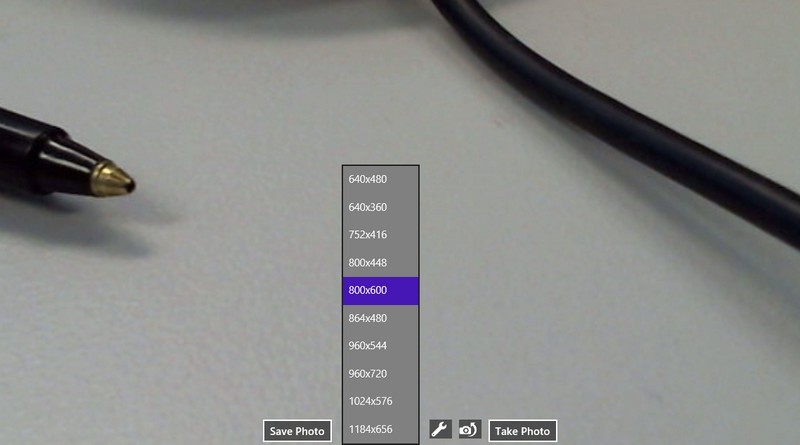
Implementing Camera Switch, Resolution Change and Option Popup with MediaCapture API in WinJS

WinJS provides CameraCaptureUI and MediaCapture API to access camera. The CameraCaptureUI has predefined UI but if you want more control such as custom UI, MediaCapture is the only option.

David Rousset's posts, Tutorial Series: using WinJS & WinRT to build a fun HTML5 Camera Application for Windows 8 is great resource to learn how to work with MediaCapture API. But some common features available on CameraCaptureUI are not included in David's example. After some research and testing I implemented camera switching, resolution selection and camera option popup with MediaCapture API.

  • Change camera:
    An option to let user to switch another camera if multiple cameras available. The key is set the MediaCaptureInitializationSettings.videoDeviceId property, and pass MediaCaptureInitializationSettings to initialize the MediaCapture object. We can use Windows.Devices.Enumeration.DeviceInformation.finaAllAsync method to loop through all video capture devices and get all cameras' device ID.
  • Change resolution :
    User can change camera's resolution for photo taking. We use MediaCapture.videoDeviceController.getAvailableMediaStreamProperties method to get a list of available resolutions for the camera tied to the MediaCapture object, and use MediaCapture.videoDeviceController.setMediaStreamPropertiesAsync method to set the camera resultion.
  • Open other options dialog:
    A button to open camera's option dialog by calling Windows.Media.Capture.CameraOptionsUI.show(mediaCapture) method.

Following is code example implementing above three features. Although the code is targeting to photo functions for demo purpose, it applies to video capturing as well. Refer to David's posts for more details on how to work on videos using MediaCapture API.

<!DOCTYPE html>
<html>
<head>
    <meta charset="utf-8" />
    <title>CustomCameraPage</title>

    <!-- WinJS references -->
    <link href="//Microsoft.WinJS.1.0/css/ui-dark.css" rel="stylesheet" />
    <script src="//Microsoft.WinJS.1.0/js/base.js"></script>
    <script src="//Microsoft.WinJS.1.0/js/ui.js"></script>

    <!-- CustomCameraPage references -->
    <link href="/css/default.css" rel="stylesheet" />
    <script src="/js/default.js"></script>
</head>
<body>
    <div id="cameraPage">
        <video id="cameraPreview"></video>
        <img id="imgPhotoTaken" style="display:none;"/>
        <div class="footer">
            <button id="btnSave" title="Save a photo">Save Photo</button>
            <select id="selectResolutions" title="Camera Resolutions"></select>
            <span id="cameraOption" title="Set camera option">&#xe15e</span>
            <span id="cameraSwitch" title="Switch to another camera">&#xe124</span>
            <button id="btnTake" title="Take a photo">Take Photo</button>
        </div>
    </div>
</body>
</html>
CSS:
#cameraPreview, #imgPhotoTaken { width: 100%; height: 100%; }
#cameraPage .footer { position: absolute; bottom: 0px; left: calc(50% - 200px); }
#cameraPage .footer > * { background-color: rgba(0,0,0,0.5); color: #ffffff; margin-left: 10px; }
#cameraPage .footer  { font-size: 1.4em; }
JavaScript:
// For an introduction to the Blank template, see the following documentation:
// http://go.microsoft.com/fwlink/?LinkId=232509
(function () {
    "use strict";

    WinJS.Binding.optimizeBindingReferences = true;

    var app = WinJS.Application;
    var activation = Windows.ApplicationModel.Activation;

    var mediaCapture;
    var cameraSettings;
    var allCameras = [];
    var cameraResolutions = [];
    var liveMode = true;
    var mediaType = Windows.Media.Capture.MediaStreamType;
    var tempFile = "photo.jpg";
    var tempFolder = Windows.Storage.ApplicationData.current.localFolder;
    var fileSaver = new Windows.Storage.Pickers.FileSavePicker();

    app.onactivated = function (args) {
        if (args.detail.kind === activation.ActivationKind.launch) {
            if (args.detail.previousExecutionState !== activation.ApplicationExecutionState.terminated) {
                // TODO: This application has been newly launched. Initialize
                // your application here.
            } else {
                // TODO: This application has been reactivated from suspension.
                // Restore application state here.
            }
            args.setPromise(WinJS.UI.processAll());

            initPage();
        }
    };

    app.start();

    // Page initialization
    function initPage() {
        fileSaver.suggestedStartLocation = Windows.Storage.Pickers.PickerLocationId.picturesLibrary;
        fileSaver.fileTypeChoices.insert("JPG image", [".jpg"]);
        getCamera().then(function (camera) {
            if (camera) {
                wireControls();
                if (allCameras.length <= 1) {
                    cameraSwitch.disabled = "disabled";
                }
                startCamera(camera);
            } else {
                showError("No camera found.", "Error");
            }
        },
        function (error) {
            onCameraError(error);
        });
    }

    // UI element event binding 
    function wireControls() {
        btnSave.addEventListener("click", saveImage);
        btnTake.addEventListener("click", takePhoto);
        cameraSwitch.addEventListener("click", switchCamera);
        cameraOption.addEventListener("click", setCameraOtherOption);
        selectResolutions.addEventListener("change", setCameraResolution);
    }

    // Creating a new mediaCapture object based on a selected camera, then get all its available resolutions;
    // Return a Promise when completed
    function startCamera(camera) {
        if (camera) {
            cameraSettings = new Windows.Media.Capture.MediaCaptureInitializationSettings();
            cameraSettings.photoCaptureSource = Windows.Media.Capture.PhotoCaptureSource.videoPreview;
            cameraSettings.streamingCaptureMode = Windows.Media.Capture.StreamingCaptureMode.video;
            cameraSettings.videoDeviceId = camera.id;
            mediaCapture = new Windows.Media.Capture.MediaCapture();
            mediaCapture.addEventListener("failed", onCameraError, false);
            return mediaCapture.initializeAsync(cameraSettings).then(function () {
                mediaCapture.setPreviewRotation(Windows.Media.Capture.VideoRotation.none);
                return getCameraResolutions();
            }).then(function () {
                cameraPreview.src = URL.createObjectURL(mediaCapture, { oneTimeOnly: true });
                cameraPreview.play();
            },
            function (error) {
                showError(error);
            });;
        } else {
            return WinJS.Promise.wrapError("No camera to start");
        }
    }

    // Release resource of live video preview and mediaCapture object
    function releaseCamera() {
        cameraView.src = null;
        mediaCapture = null;
    }

    // Loop through all cameras
    // Return a Promise with a default camera
    function getCamera() {
        allCameras = [];
        return new WinJS.Promise(function (c, e) {
            var deviceInfo = Windows.Devices.Enumeration.DeviceInformation;
            return deviceInfo.findAllAsync(Windows.Devices.Enumeration.DeviceClass.videoCapture).then(function (devices) {
                if (devices.length > 0) { // Camera found
                    var defaultCamera = devices[0]
                    for (var i = 0; i < devices.length; i++) {
                        var device = devices[i];
                        allCameras.push(device);
                        // Default to embedded front camera
                        if (device.enclosureLocation && device.enclosureLocation.panel == Windows.Devices.Enumeration.Panel.front)
                            defaultCamera = device;
                    }
                    c(defaultCamera);
                } else { // No camera found
                    c();
                }
            },
            function (error) { // Error
                e(error);
            });
        });
    }

    // Switch to different camera if mulitple cameras available
    function switchCamera() {
        if (mediaCapture && allCameras && allCameras.length > 1) {
            var currentCameraId = mediaCapture.mediaCaptureSettings.videoDeviceId;
            var nextCamera = null;
            var cameraCount = allCameras.length;
            for (var i = 0; i < cameraCount; i++) {
                var cam = allCameras[i];
                if (cam.id === currentCameraId) {
                    if (i == (cameraCount - 1)) {
                        nextCamera = allCameras[0];
                    } else {
                        nextCamera = allCameras[i + 1];
                    }
                    break;
                }
            }
            if (nextCamera) {
                releaseCamera();
                startCamera(nextCamera);
            }
        }
    }

    // Take a photo, save it to temporary folder then display it on the screen
    // Return a Prmoise when completed
    function takePhoto() {
        if (mediaCapture) {
            if (!liveMode) { // Show the live video preview if clicking "Retake"
                toggleView();
                return WinJS.Promise.as();
            } else { // Save and display taken photo if clicking "Take"
                var saveOption = Windows.Storage.CreationCollisionOption;
                return tempFolder.createFileAsync(tempFile, saveOption.replaceExisting).then(function (file) {
                    var photoProperties = Windows.Media.MediaProperties.ImageEncodingProperties.createJpeg();
                    return mediaCapture.capturePhotoToStorageFileAsync(photoProperties, file).then(function (result) {
                        return tempFolder.getFileAsync(tempFile).then(function (newFile) {
                            if (newFile) {
                                var imageUrl = URL.createObjectURL(file, { oneTimeOnly: true });
                                imgPhotoTaken.src = imageUrl;
                                toggleView();
                            }   
                        });
                        
                    });
                });
            }
        }
    }

    // Toggle display to show taken photo or video live preview, and switch button text to "Take" or "Retake"
    function toggleView () {
        if (liveMode) { // when showing live video preview
            liveMode = false;
            btnTake.textContent = "Retake";
            imgPhotoTaken.style.display = "block";
            cameraPreview.style.display = "none";
            cameraPreview.pause();
            
        } else { // when showing taken image 
            liveMode = true;
            btnTake.textContent = "Take";
            cameraPreview.style.display = "block";
            imgPhotoTaken.style.display = "none";
            cameraPreview.play();
        }
    }

    // Get all resolutions of current MediaCapture object and populate resolutions option in UI 
    // Return a Promise when completed
    function getCameraResolutions() {
        if (mediaCapture) {
            cameraResolutions = [];
            while (selectResolutions.length > 0) {
                selectResolutions.remove(0);
            }

            var currentResolution = mediaCapture.videoDeviceController.getMediaStreamProperties(mediaType.videoPreview);
            var allResolutions = mediaCapture.videoDeviceController.getAvailableMediaStreamProperties(mediaType.videoPreview);

            // Save all unique resolutions
            var tempResolutions = [];
            for (var i = 0; i < allResolutions.length; i++) {
                var res = allResolutions[i];
                if (res.width < 600)
                    continue;
                var hasDuplicated = false;
                tempResolutions.forEach(function (item) {
                    if (item.width == res.width && item.height == res.height)
                        hasDuplicated = true;
                });
                if (!hasDuplicated)
                    tempResolutions.push(res);
            }

            // Sort all unique resolutions from low to high based on width
            tempResolutions.sort(function (item1, item2) {
                return item1.width == item2.width ? item1.height - item2.height : item1.width - item2.width;
            });

            // Save camera resolutions and populate resolution options in UI 
            for (var i = 0; i < tempResolutions.length; i++) {
                var res = tempResolutions[i];
                cameraResolutions.push(res);
                selectResolutions.add(new Option(res.width + "x" + res.height));
                if (currentResolution.width == res.width && currentResolution.height == res.height) {
                    selectResolutions.selectedIndex = i;
                }
            }
            return mediaCapture.videoDeviceController.setMediaStreamPropertiesAsync(mediaType.videoPreview, currentResolution);
        } else {
            return WinJS.Promise.as();
        }
    }

    // Switch to a different resolution on a camera
    function setCameraResolution() {
        if (mediaCapture) {
            try {
                var index = selectResolutions.selectedIndex;
                if (cameraResolutions.length > index) {
                    var resolution = cameraResolutions[index];
                    mediaCapture.videoDeviceController.setMediaStreamPropertiesAsync(mediaType.videoPreview, resolution).then(function () {
                        cameraPreview.src = null;
                        cameraPreview.src = URL.createObjectURL(mediaCapture, { oneTimeOnly: true });
                        cameraPreview.play();
                    },
                    function (error) {
                        onCameraError(error);
                    });
                }
            } catch (e) {
                showError(e);
            }
        }
    }

    // Popup camera option menu
    function setCameraOtherOption() {
        if (mediaCapture) {
            Windows.Media.Capture.CameraOptionsUI.show(mediaCapture);
        }
    }

    // When user select to save a photo 
    function saveImage() {
        if (liveMode) {
            takePhoto().then(function () {
                saveImageToStorage();
            });
        } else {
            saveImageToStorage();
        }         
    }

    // Open file picker and save photo to specific name and location
    function saveImageToStorage() {
        fileSaver.pickSaveFileAsync().then(function (file) {
            if (file) {
                tempFolder.getFileAsync(tempFile).then(function (tmpImage) {
                    tmpImage.copyAndReplaceAsync(file).done(function () {
                        console.log("Photo saved to " + file.path + " successfully.");
                    });
                });
            }
        });
    }

    // Error occurs during camera operation
    function onCameraError(error) {
        showError(error);
    }

    // Ddisplay error information
    function showError(error, title) {
        var message = (error && error.message) ? error.message : error;
        var msgPopup = new Windows.UI.Popups.MessageDialog(message);
        if (title)
            msgPopup.title = title;
        msgPopup.commands.append(new Windows.UI.Popups.UICommand("Ok"));
        msgPopup.showAsync();
    }
})();

The resolution option now is available for user to select:

When camera other options dialog pops up:

When a photo is taken, you have option to retake or save it:

Wednesday, April 24, 2013

Windows 8 Orientation Check

Ideally we would like to restrict rotation for some specific pages in a Windows 8 mobile app. For example, always show landscape mode for one page and portrait mode for another page. This is super simple in Android where we can configure an activity's screen orientation in AndroidManifest.xml file or set it through code. After some research, unfortunately I found it's impossible doing such simple thing in Windows 8.

As a workaround we display a warning message on the screen when the orentation is not in desired mode. First I tried OrientationSensor :

    var orientationSensor = Windows.Devices.Sensors.SimpleOrientationSensor.getDefault();
    if (orientationSensor) 
        orientationSensor.addEventListener("orientationchanged", onCameraOrientationChanged);
The event is set in a few pages not globally, but I found the event is not reliable and it's not fired sometimes when the screen is rotated. So I go back to the "resize" event and it always works:
    window.addEventListener("resize", orientationCheck);
    function orientationCheck() {
        var isOnCertainPage = 0; // Check if it's current page
        if (isOnCertainPage) { 
            if (Windows.UI.ViewManagement.ApplicationView.value != 
               Windows.UI.ViewManagement.ApplicationViewState.fullScreenLandscape) {
                // Show warning message 
            }
        }
    }

Friday, April 12, 2013

Using HTML5 Canvas to Manipulate Image in Windows 8

I presented a way to upload multiple images in my previous post. Sometime we need to manipulate the images first, such as resizing, compress, then do the upload. There's a few ways to do such job using Windows 8 JavaScript. The easiest one is use HTML5 canvas:

    // Convert image dataUri format to blob format
    function dataURItoBlob(dataURI) {
        var byteString = atob(dataURI.split(',')[1]);
        var mimeString = dataURI.split(',')[0].split(':')[1].split(';')[0]

        var byteArray = new Uint8Array(byteString.length);
        for (var i = 0; i < byteString.length; i++) {
            byteArray[i] = byteString.charCodeAt(i) & 0xff;
        }

        return new Blob([byteArray], { type: mimeString });
    }

    // Use HTML5 canvas to resize and compress an image
    function resizeAndCompressImageToBlob(image, length, quality) {
        var isLandScape = image.naturalWidth > image.naturalHeight;
        var width = isLandScape ? length :  parseInt((length / image.naturalHeight) * image.naturalWidth)
        var heigh = isLandScape ? parseInt((width / image.naturalWidth) * image.naturalHeight) : length;
        var cvs = document.createElement('canvas');
        cvs.width = width;
        cvs.height = heigh;
        cvs.getContext("2d").drawImage(image, 0, 0, width, heigh);
        var dataUri = cvs.toDataURL("image/jpeg", quality);
        var imgBlob = dataURItoBlob(dataUri);
        return imgBlob;
    }

    // Load image asynchronously
    function loadImageAsync(src) {
        return new WinJS.Promise(function (c, e, p) {
            var img = new Image();
            img.src = src;
            img.addEventListener("load", function () {
                c(img);
            });
        });
    }

    function uploadMultipleImages(url, formFields) {
        return new WinJS.Promise(function (c, e, p) {
            var dataToSend = new FormData();
            var filePicker = new Windows.Storage.Pickers.FileOpenPicker();
            filePicker.fileTypeFilter.replaceAll([".jpg", ".jpeg"]);
            filePicker.suggestedStartLocation = Windows.Storage.Pickers.PickerLocationId.picturesLibrary;

            filePicker.pickMultipleFilesAsync().then(function (files) {
                if (files.length === 0) {
                    console.log("No file selected");
                    return;
                }
                if (formFields && formFields.length > 0) {
                    formFields.forEach(function (formField) {
                        for (var key in formField) {
                            dataToSend.append(key, formField[key]); // Add field value
                        }
                    });
                }
                var imgPromises = []; // Promises for all image loading
                files.forEach(function (file, index) {
                    var objectUrl = URL.createObjectURL(file, { oneTimeOnly: true });
                    var loadImage = loadImageAsync(objectUrl, file.name);
                    imgPromises.push(loadImage);
                });

                // Wait for all async calls completion 
                WinJS.Promise.join(imgPromises).then(function (data) { 
                    var savePromieses = [];
                    for (var i = 0; i < data.length; i++) {
                        var imageBlob = resizeAndCompressImageToBlob(data[i], 1200, 0.8);
                        dataToSend.append(files[i].name, imageBlob, files[i].name);
                    }

                    var options = { url: url, type: "POST", data: dataToSend };
                    WinJS.xhr(options).then(function (response) {
                        c(response);
                    },
                    function (xhrError) {
                        e(xhrError);
                    });

                },
                function (joinError) {
                    e(joinError);
                });
            });
        });
    }

Monday, April 08, 2013

Upload Multiple Images in WinJS

This post shows a WinJS/HTML solution to upload multiple images in Windows 8. The same method can apply to other binary files, not limited to images.

Requirement : use HTML POST to upload multiple images to a server at one shot with some form values

Solution : use FormData to build the raw data and use WinJS.xhr to post the data

Code :

    /**
     * Select multiple images and upload to the server
     * @param string url: Server URL
     * @param array formFields: other form values to send
     * @return a Promise object
     */ 
    function uploadMultipleImages(url, formFields) {
        return new WinJS.Promise(function (c, e, p) {
            var dataToSend = new FormData();
            var filePicker = new Windows.Storage.Pickers.FileOpenPicker();
            filePicker.fileTypeFilter.replaceAll([".jpg", ".jpeg"]);
            filePicker.suggestedStartLocation = Windows.Storage.Pickers.PickerLocationId.picturesLibrary;

            filePicker.pickMultipleFilesAsync().then(function (files) {
                if (files.length === 0) {
                    console.log("No file selected");
                    return;
                }
                if (formFields && formFields.length > 0) {
                    formFields.forEach(function (formField) {
                        for (var key in formField) {
                            dataToSend.append(key, formField[key]); // Add field value
                        }
                    });
                }

                var imgPromises = []; // Promises for all images access 
                files.forEach(function (file, index) {
                    imgPromises.push(file.openAsync(Windows.Storage.FileAccessMode.read));
                });

                WinJS.Promise.join(imgPromises).then(function (data) { // Wait for all promises 
                    for (var i = 0; i < data.length; i++) {
                        // data[i] is the file stream
                        var blob = MSApp.createBlobFromRandomAccessStream("image/jpg", data[i]);
                        dataToSend.append(files[i].name, blob, files[i].name);
                    }

                    var options = { url: url, type: "POST", data: dataToSend };
                    WinJS.xhr(options).then(function (response) {
                        c(response);
                    },
                    function (xhrError) {
                        e(xhrError);
                    });
                },
                function (joinError) {
                    e(joinError);
                });
            });
        });
    }

Usage example :

        var url = "http://testServer/FileUpload/OCR/";
        var formValues = [];
        formValues.push({ Token: "1234567890" });
        uploadMultipleImages(url, formValues).then(function (response) {
            var result = response.responseText;
            //DO STUFF
        });

Note : It's important to include the third parameter when appending blob data:

    var blob = MSApp.createBlobFromRandomAccessStream("image/jpg", data[i]);
    dataToSend.append(files[i].name, blob, files[i].name);
This will result in following HTTP POST:
-----------------------------multipart-form-data-boundary
Content-Disposition: form-data; name="File1.JPG"; filename="File1.JPG"
Content-Type: image/jpg;

--image binary--
If the third parameter is skipped: formData.append(objName, objValue); then the filename property will be set to "blob" as below which is not accepted in many server implementations:
-----------------------------multipart-form-data-boundary
Content-Disposition: form-data; name="File1.JPG"; filename="blob"
Content-Type: image/jpg;

--image binary--

Monday, February 18, 2013

Work with WinJS ListView Control - The ASP.NET Way

In this post a Windows 8 JavaScript app is created to display a list of phones with sorting and editing functions. The WinJS ListView control is used in the app much like what we do with GridView in typical ASP.NET web application.

Note that this post presents a way to resolve some common problem and demos how we can work wiht Windows 8 WinJS. It doesn't mean that's the recommended way or the best practice.

HTML (home.html)

Create a Windows 8 JavaScript project using Navigation App template (other template should also work), update the home.html:

<!DOCTYPE html>
<html>
<head>
    <meta charset="utf-8" />
    <title>homePage</title>

    <!-- WinJS references -->
    <link href="//Microsoft.WinJS.1.0/css/ui-dark.css" rel="stylesheet" />
    <script src="//Microsoft.WinJS.1.0/js/base.js"></script>
    <script src="//Microsoft.WinJS.1.0/js/ui.js"></script>

    <script src="/js/jquery-1.8.2.js"></script>
    <link href="/css/default.css" rel="stylesheet" />
    <link href="/pages/home/home.css" rel="stylesheet" />
    <script src="/pages/home/home.js"></script>

</head>
<body>
    <!-- The content that will be loaded and displayed. -->
    <div class="fragment homepage">
        <header aria-label="Header content" role="banner">
            <button class="win-backbutton" aria-label="Back" disabled type="button"></button>
        </header>

        <section aria-label="Main content" role="main">

            <div id="listviewPage">
                <div class="header">
                    <h1>My Smartphone List</h1>
                </div>
                <div class="row title">
                    <span id="titleName">Name</span>
                    <span id="titleBland">Bland</span>
                    <span id="titleOS">OS</span>
                    <span id="titleSize">Size</span>
                    <span id="titlePrice">PriceFrom</span>
                    <span id="titleAdd">Add</span>
                </div>
                <div id="lvPhonesTemplate" data-win-control="WinJS.Binding.Template">
                    <div class="row">
                        <span data-win-bind="innerText: Name"></span>
                        <span data-win-bind="innerText: Bland"></span>
                        <span data-win-bind="innerText: OS"></span>
                        <span data-win-bind="innerText: Size"></span>
                        <span class="price" data-win-bind="innerText: PriceFrom"></span>
                        <span class="edit">Edit</span>
                    </div>
                </div>
                <div class="listview">
                    <div id="lvPhones" data-win-control="WinJS.UI.ListView"
                        data-win-options="{tapBehavior: 'none', selectionMode: 'none', layout: {type: WinJS.UI.ListLayout}}">
                    </div>
                </div>
            </div>

            <div id="editPage">
                <div class="header">
                    <h1><label id="editTitle">Edit</label></h1>
                </div>
                <div class="form">
                    <div class="row">
                        <label for="editName">Name</label><input id="editName" type="text" required="required" />
                    </div>
                    <div class="row">
                        <label for="editBland">Bland</label><input id="editBland" type="text" required="required" />
                    </div>
                    <div class="row">
                        <label for="editOS">OS</label><input id="editOS" type="text" required="required" />
                    </div>
                    <div class="row">
                        <label for="editSize">Size (inch)</label><input id="editSize" type="text" required="required" />
                    </div>
                    <div class="row">
                        <label for="editPrice">Price From</label><input id="editPrice" type="text" required="required" />
                    </div>
                    <div class="error"></div>
                    <div class="footer">
                        <button id="btnCancel">Cancel</button>
                        <button id="btnEdit">Update</button>
                    </div>
                </div>
            </div>
        </section>
    </div>
</body>
</html>

The UI is quite simply. It contains two sections: a page to display tabular data using a ListView and a template for the ListView, and an edit form for editing an existing phone or adding a new phone entry. The jQuery is included so we can manipulate DOM elements the way we deal with traditional web apps.

CSS (home.css)

#listviewPage, #editPage { width: 900px; }
#listviewPage .header, #editPage .header { height: 50px; text-align: center; margin-bottom: 30px; }
#listviewPage .listview { width: 900px; overflow: auto; border: solid; }
#listviewPage .row.title { padding-left: 15px; border-bottom-style: none; }
#listviewPage .row { height: 30px; padding: 5px; border-bottom-style: solid; }
#listviewPage .row span:nth-child(6) { width: 50px; font-weight: bold; }
#listviewPage .row span { display: inline-block; width: 150px; }

#editPage .form { width: 800px; padding: 10px; }
#editPage .row { height: 40px; }
#editPage .row input { width: 400px; }
#editPage .row label { display: inline-block; width: 200px; padding: 10px; text-align: right; }
#editPage .footer { margin: 40px 200px; float: right; }
#editPage .footer button { margin: 10px; }

.homepage section[role=main] { margin-left: 120px; }

JavaScript (home.js)

(function () {
    "use strict";
    WinJS.Binding.optimizeBindingReferences = true;
    WinJS.UI.disableAnimations(); // Use jQuery animation instead

    var editedPhone = null;
    var smartphones = generateSampleData();
    var smartphoneList = new WinJS.Binding.List(smartphones);
    
    function generateSampleData() {
        var blands = ["Apple", "Nokia", "Samsung"];
        var oss = ["iOS", "Windows Phone", "Android"];
        var phones = [
            { ID: 1, Name: "iPhone 4", Bland: blands[0], OS: oss[0], Size: 3.5, PriceFrom: 449 },
            { ID: 2, Name: "iPhone 4S", Bland: blands[0], OS: oss[0], Size: 3.5, PriceFrom: 549 },
            { ID: 3, Name: "iPhone 5", Bland: blands[0], OS: oss[0], Size: 4.0, PriceFrom: 649 },
            { ID: 4, Name: "Lumia 820", Bland: blands[1], OS: oss[1], Size: 4.3, PriceFrom: 399 },
            { ID: 5, Name: "Lumia 900", Bland: blands[1], OS: oss[1], Size: 4.3, PriceFrom: 349 },
            { ID: 6, Name: "Lumia 920", Bland: blands[1], OS: oss[1], Size: 4.5, PriceFrom: 449 },
            { ID: 7, Name: "Galaxy S2", Bland: blands[2], OS: oss[2], Size: 4.3, PriceFrom: 349 },
            { ID: 8, Name: "Galaxy S3", Bland: blands[2], OS: oss[2], Size: 4.8, PriceFrom: 499 },
            { ID: 9, Name: "Galaxy Note", Bland: blands[2], OS: oss[2], Size: 5.3, PriceFrom: 599 },
            { ID: 10, Name: "Galaxy Note2", Bland: blands[2], OS: oss[2], Size: 5.5, PriceFrom: 699 },
        ];
        return phones;
    }

    // Listview item databound event  
    function onItemDataBound(container, itemData) {
        var $price = $(".price", container);
        var price = parseFloat($price.text());
        if (price < 400)
            $price.css("color", "green");
        else if ( price > 600)
            $price.css("color", "red");
    }

    // Listview template function
    function listViewItemTemplateFunction(itemPromise) {
        return itemPromise.then(function (item) {
            var template = document.getElementById("lvPhonesTemplate");
            var container = document.createElement("div");
            template.winControl.render(item.data, container);
            onItemDataBound(container, item.data);
            return container;
        });
    }

    // Display listview page
    function showListviewPage(skipDatabinding) {
        $(editPage).hide();
        if (!skipDatabinding) {
            smartphoneList = new WinJS.Binding.List(smartphones);
            lvPhones.winControl.itemDataSource = smartphoneList.dataSource;
            lvPhones.winControl.itemTemplate = listViewItemTemplateFunction;
        }
        $(listviewPage).fadeIn();
    }

    WinJS.UI.Pages.define("/pages/home/home.html", {
        ready: function (element, options) {
            showListviewPage();
        }
    });
})();

A listViewItemTemplateFunction function is defined for the ListView's itemTemplate property so we have granular control on each ListView item at run-time. The template function gets the template elements defined in home.html and injects them inside a div container, then use template's render function to emit the content. The ListView is fully populated at this point.

How to do more business logic for each item like what we do in GridView's itemDataBound event in ASP.NET? Here we define another onItemDataBound function to simulate such process. In our example we apply a logic to show different price color based on its amount: green if less than $400 and red if greater than $600. In ASP.NET we find the control inside template by its ID, here we locate an HTML element by its CSS class. Later we will set the edit button handler inside the onItemDataBound function.

The ListView screen looks like:

Sorting Implementation

The single-column sorting is implemented by updating the datasource of the ListView:
    var sortors = { Name: "asc", Bland: "asc", OS: "asc", Size: "asc", PriceFrom: "asc" };

    // Sorting event handler
    function sortingChanged(title) {
        try {
            var sorter = sortors[title];
            smartphones.sort(function (first, second) {
                var firstValue = first[title];
                var secondValue = second[title];
                if (typeof firstValue == "string")
                    return sorter == "asc" ?
                        firstValue.localeCompare(secondValue) : secondValue.localeCompare(firstValue);
                else {
                    if (firstValue == secondValue)
                        return 0;
                    else if (firstValue > secondValue)
                        return sorter == "asc" ? 1 : -1;
                    else
                        return sorter == "asc" ? -1 : 1;
                }
            });
            sortors[title] = sorter == "asc" ? "desc" : "asc";
            showListviewPage();
        } catch (e) {
            console.log("sort error: " + e.message);
        }
    }

    WinJS.UI.Pages.define("/pages/home/home.html", {
        ready: function (element, options) {
            // listview sorting
            $(".row.title", listviewPage).children().each(function (index, columnTitle) {
                var titleText = $(columnTitle).text();
                if (titleText != "Add") {
                    $(columnTitle).on("click", function () {
                        sortingChanged(titleText);
                    });
                }
            });
   //...
        }
    });

When the user clicks the header (title) of one column, the header text is passed to sortingChanged function so the sorting function knows which column is to sort. For simply demo purpose the "Add" button is put as the Edit column header which is not sortable, so it's exluded from the sorting event binding.

Add and Edit Interaction

The HTML has already included a simple edit form but the related logic is missing. We need to define the navigation handling between the list view and the edit form:

    // Listview item databound event  
    function onItemDataBound(container, itemData) {
        //...
        var $edit = $(".edit", container);
        $edit.on("click", itemData, showEditPage);
    }
    
 // Display Add/Edit form page
    function showEditPage(event) {
        if (event && event.data && event.data.ID) {
            editTitle.textContent = "Edit Smartphone";
            btnEdit.textContent = "Update";
            editedPhone = event.data;
            editName.value = editedPhone.Name;
            editBland.value = editedPhone.Bland;
            editOS.value = editedPhone.OS;
            editSize.value = editedPhone.Size;
            editPrice.value = editedPhone.PriceFrom;
        } else {
            editedPhone = null;
            editTitle.textContent = "Add A New Smartphone ";
            btnEdit.textContent = "Add";
            $("input", editPage).each(function (index, input) {
                $(input).val("");  // Cleanup all the input textbox
            });
        }
        $(listviewPage).fadeOut(function () {
            $(editPage).fadeIn();
        });
    }

    // Add or update an item
    function updateOrAddPhone() {
        if (editedPhone) { // Update existing phone
            editedPhone.Name = editName.value;
            editedPhone.Bland = editBland.value;
            editedPhone.OS = editOS.value;
            editedPhone.Size = editSize.value;
            editedPhone.PriceFrom = editPrice.value;
        } else { // Add a new phone
            var phone = {
                ID: smartphones.length + 1,
                Name: editName.value,
                Bland: editBland.value,
                OS: editOS.value,
                Size: editSize.value,
                PriceFrom: editPrice.value
            };
            smartphones.push(phone);
        }
        showListviewPage();
    }
    
    WinJS.UI.Pages.define("/pages/home/home.html", {
        ready: function (element, options) {
            titleAdd.addEventListener("click", showEditPage);
            btnEdit.addEventListener("click", updateOrAddPhone);
            btnCancel.addEventListener("click", function () { showListviewPage(true); });
            //...
        }
    });

The add and edit share the same form. We toggle the display between listView and edit form page section when editting or finishing editting and list item. In this demo the code doesn't have validation for the edit form, but in reality we should always implement validation logic for the user input.

Another note is that in order to get input elements inside the ListView control to work, such as textbox and select dropdowns, you need to add "win-interactive" class for those elements:

    <input id="amount" class="win-interactive" type="number" />
The Add and Edit forms' screen-shot:

The Final JavaScript (home.js)

(function () {
    "use strict";
    WinJS.Binding.optimizeBindingReferences = true;
    WinJS.UI.disableAnimations(); // Use jQuery animation instead

    var editedPhone = null;
    var smartphones = generateSampleData();
    var smartphoneList = new WinJS.Binding.List(smartphones);
    var sortors = { Name: "asc", Bland: "asc", OS: "asc", Size: "asc", PriceFrom: "asc" };

    function generateSampleData() {
        var blands = ["Apple", "Nokia", "Samsung"];
        var oss = ["iOS", "Windows Phone", "Android"];
        var phones = [
            { ID: 1, Name: "iPhone 4", Bland: blands[0], OS: oss[0], Size: 3.5, PriceFrom: 449 },
            { ID: 2, Name: "iPhone 4S", Bland: blands[0], OS: oss[0], Size: 3.5, PriceFrom: 549 },
            { ID: 3, Name: "iPhone 5", Bland: blands[0], OS: oss[0], Size: 4.0, PriceFrom: 649 },
            { ID: 4, Name: "Lumia 820", Bland: blands[1], OS: oss[1], Size: 4.3, PriceFrom: 399 },
            { ID: 5, Name: "Lumia 900", Bland: blands[1], OS: oss[1], Size: 4.3, PriceFrom: 349 },
            { ID: 6, Name: "Lumia 920", Bland: blands[1], OS: oss[1], Size: 4.5, PriceFrom: 449 },
            { ID: 7, Name: "Galaxy S2", Bland: blands[2], OS: oss[2], Size: 4.3, PriceFrom: 349 },
            { ID: 8, Name: "Galaxy S3", Bland: blands[2], OS: oss[2], Size: 4.8, PriceFrom: 499 },
            { ID: 9, Name: "Galaxy Note", Bland: blands[2], OS: oss[2], Size: 5.3, PriceFrom: 599 },
            { ID: 10, Name: "Galaxy Note2", Bland: blands[2], OS: oss[2], Size: 5.5, PriceFrom: 699 },
        ];
        return phones;
    }

    // Listview item databound event  
    function onItemDataBound(container, itemData) {
        var $price = $(".price", container);
        var price = parseFloat($price.text());
        if (price < 400)
            $price.css("color", "green");
        else if ( price > 600)
            $price.css("color", "red");
        var $edit = $(".edit", container);
        $edit.on("click", itemData, showEditPage);
    }

    // Listview template function
    function listViewItemTemplateFunction(itemPromise) {
        return itemPromise.then(function (item) {
            var template = document.getElementById("lvPhonesTemplate");
            var container = document.createElement("div");
            template.winControl.render(item.data, container);
            onItemDataBound(container, item.data);
            return container;
        });
    }

    // Display listview page
    function showListviewPage(skipDatabinding) {
        $(editPage).hide();
        if (!skipDatabinding) {
            smartphoneList = new WinJS.Binding.List(smartphones);
            lvPhones.winControl.itemDataSource = smartphoneList.dataSource;
            lvPhones.winControl.itemTemplate = listViewItemTemplateFunction;
        }
        $(listviewPage).fadeIn();
    }

    // Display Add/Edit form page
    function showEditPage(event) {
        if (event && event.data && event.data.ID) {
            editTitle.textContent = "Edit Smartphone";
            btnEdit.textContent = "Update";
            editedPhone = event.data;
            editName.value = editedPhone.Name;
            editBland.value = editedPhone.Bland;
            editOS.value = editedPhone.OS;
            editSize.value = editedPhone.Size;
            editPrice.value = editedPhone.PriceFrom;
        } else {
            editedPhone = null;
            editTitle.textContent = "Add A New Smartphone ";
            btnEdit.textContent = "Add";
            $("input", editPage).each(function (index, input) {
                $(input).val("");  // Cleanup all the input textbox
            });
        }
        $(listviewPage).fadeOut(function () {
            $(editPage).fadeIn();
        });
    }

    // Add or update an item
    function updateOrAddPhone() {
        if (editedPhone) { // Update existing phone
            editedPhone.Name = editName.value;
            editedPhone.Bland = editBland.value;
            editedPhone.OS = editOS.value;
            editedPhone.Size = editSize.value;
            editedPhone.PriceFrom = editPrice.value;
        } else { // Add a new phone
            var phone = {
                ID: smartphones.length + 1,
                Name: editName.value,
                Bland: editBland.value,
                OS: editOS.value,
                Size: editSize.value,
                PriceFrom: editPrice.value
            };
            smartphones.push(phone);
        }
        showListviewPage();
    }

    // Sorting event handler
    function sortingChanged(title) {
        try {
            var sorter = sortors[title];
            smartphones.sort(function (first, second) {
                var firstValue = first[title];
                var secondValue = second[title];
                if (typeof firstValue == "string")
                    return sorter == "asc" ?
                        firstValue.localeCompare(secondValue) : secondValue.localeCompare(firstValue);
                else {
                    if (firstValue == secondValue)
                        return 0;
                    else if (firstValue > secondValue)
                        return sorter == "asc" ? 1 : -1;
                    else
                        return sorter == "asc" ? -1 : 1;
                }
            });
            sortors[title] = sorter == "asc" ? "desc" : "asc";
            showListviewPage();
        } catch (e) {
            console.log("sort error: " + e.message);
        }
    }

    WinJS.UI.Pages.define("/pages/home/home.html", {
        ready: function (element, options) {
            // Edit form buttons event handler
            titleAdd.addEventListener("click", showEditPage);
            btnEdit.addEventListener("click", updateOrAddPhone);
            btnCancel.addEventListener("click", function () { showListviewPage(true); });

            // listview sorting
            $(".row.title", listviewPage).children().each(function (index, columnTitle) {
                var titleText = $(columnTitle).text();
                if (titleText != "Add") {
                    $(columnTitle).on("click", function () {
                        sortingChanged(titleText);
                    });
                }
            });

            showListviewPage(); // Show ListView by default
        }
    });

})();